
Installation
Record Meeting offers two installs. Choose based on where you record:
| Install | Best for |
|---|---|
| Chrome extension | Google Meet, Zoom, Microsoft Teams, Webex, Telegram, Discord, WhatsApp, and Slack huddles in a desktop browser |
| Google Workspace add-on | Google Meet only, including the Google Meet mobile app (iOS and Android) |
See Supported platforms for step-by-step recording instructions on each platform.
Chrome extension
Section titled “Chrome extension”Install from the Chrome Web Store.
Works in any Chromium-based browser that supports Chrome Web Store extensions, including Chrome, Edge, Brave, and Arc.
Install steps
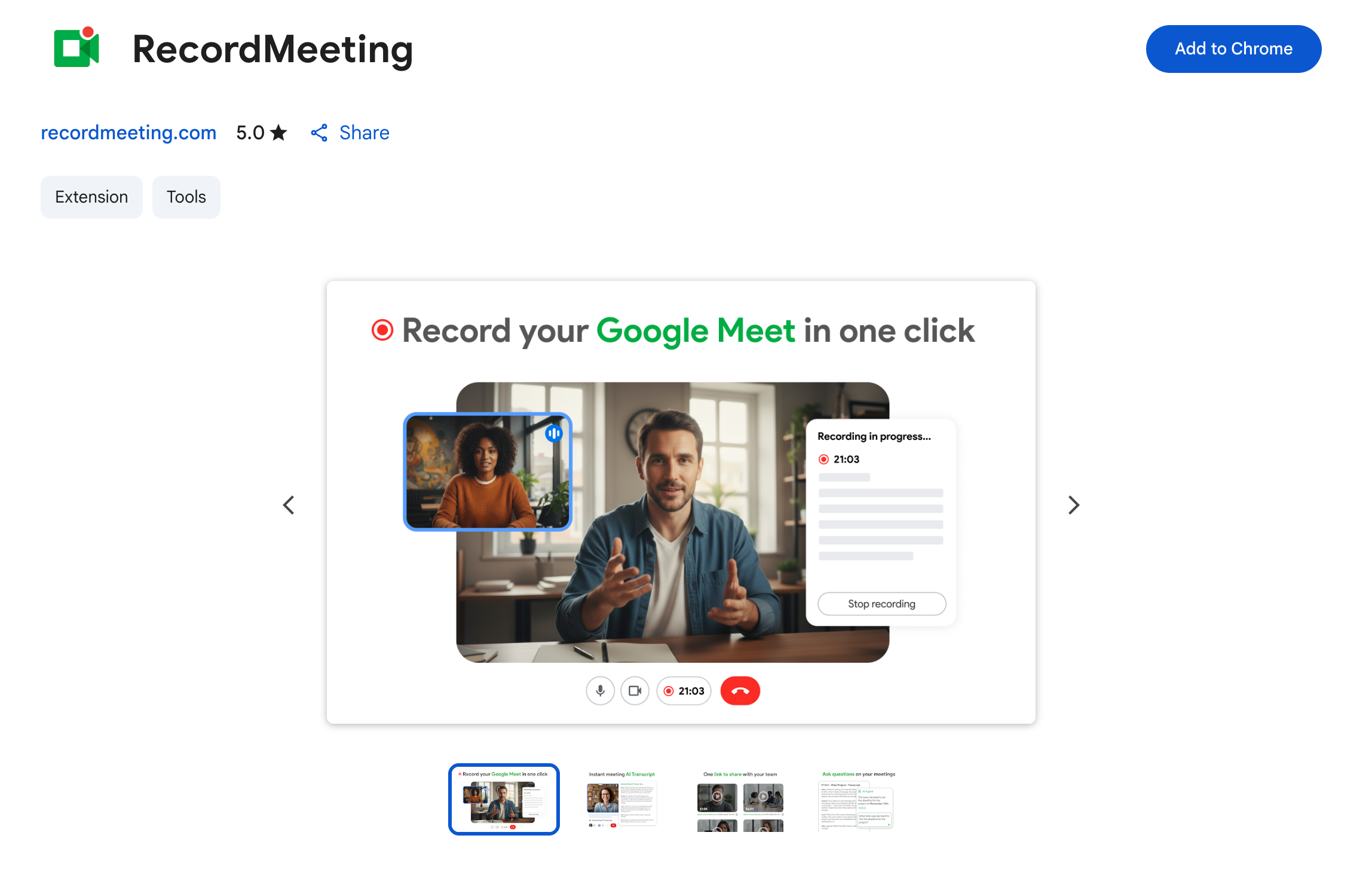
Section titled “Install steps”- Open the Chrome Web Store listing and click Add to Chrome
- Confirm permissions, then pin the extension to your toolbar
- Sign in with Google at recordmeeting.com/app
- Open a supported meeting in your browser and click Record
What you get
Section titled “What you get”- One-click recording from supported meeting tabs
- No bot joins the call (recording happens in your browser tab)
- Recordings saved to your private workspace at recordmeeting.com
- Access previous recordings from the extension sidebar
Google Workspace add-on
Section titled “Google Workspace add-on”Install from the Google Workspace Marketplace.
The add-on is for Google Meet only. You do not need the Chrome extension for Meet if you use the add-on. Install the extension separately if you also record Zoom, Teams, Webex, Telegram, Discord, WhatsApp, or Slack.
Works on free Gmail and every Google Workspace tier. No admin approval is required for most accounts.
Install steps
Section titled “Install steps”- Open the Marketplace listing and click Install
- Approve the requested Google permissions for your account
- Open Google Meet (browser or mobile app). The record control appears in the meeting UI
- Sign in to Record Meeting once to link recordings to your workspace
What you get
Section titled “What you get”- Native record control inside Google Meet
- Recording from the Google Meet mobile app on iOS and Android
- Recordings saved to your private workspace (not Google Drive)
- Per-user install from the Marketplace, no Workspace plan upgrade required
More platform-specific steps: Supported platforms.