
Google Meet add-on
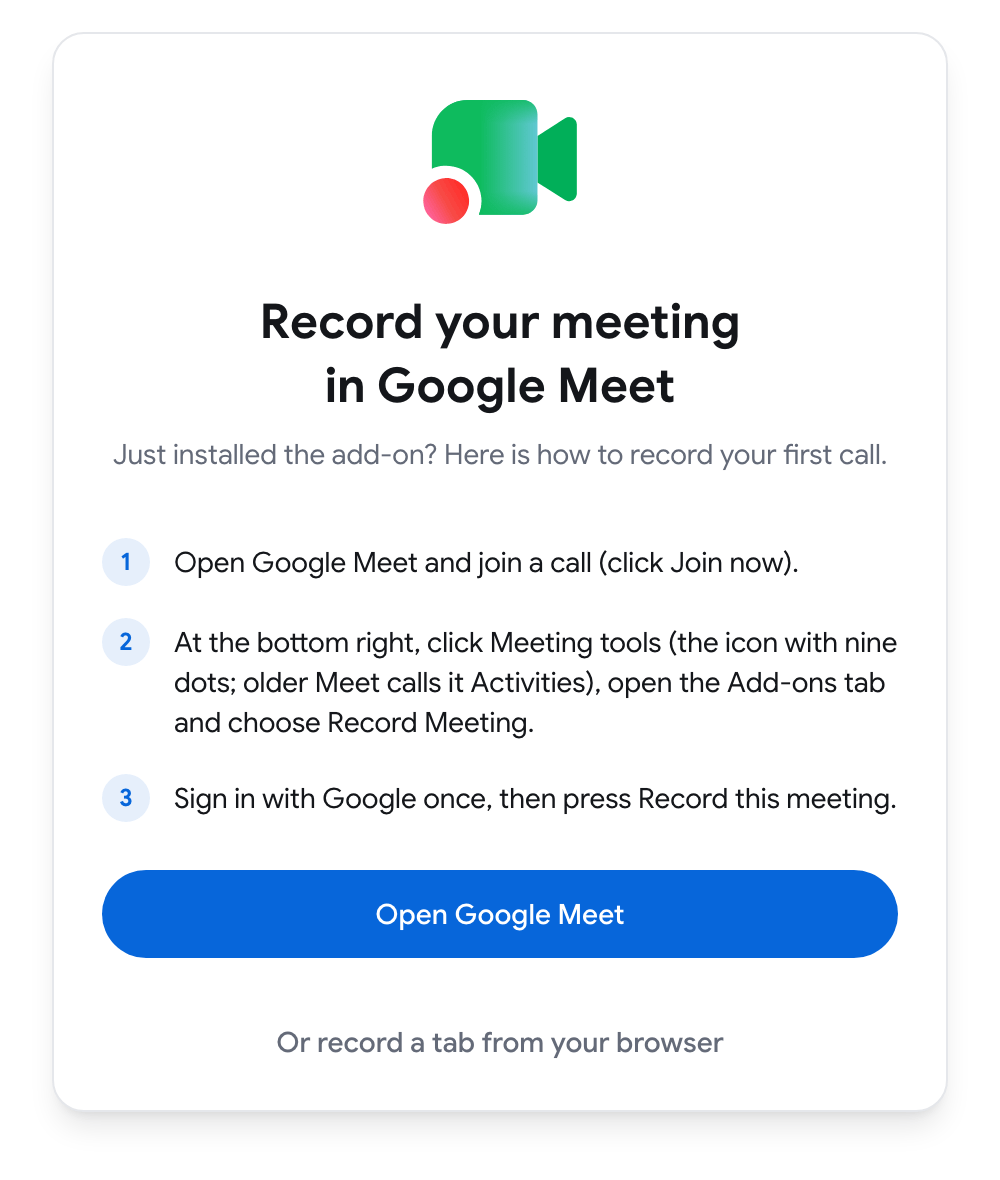
Google Meetのアドオン機能を使って「Record Meeting」をGoogle Meet通話のサイドパネルに表示させます。ブラウザの拡張機能や通話内のボットを使用せずに、Meet内から直接録画できます。
インストール方法
Section titled “インストール方法”- Google Workspace Marketplaceのリスティングを開き、「Install」をクリックします。
- アカウントのGoogleの権限承認を行います。
このアドオンは、無料のGmailアカウントとGoogle Workspaceアカウントの両方で動作します。
通話で開く方法
Section titled “通話で開く方法”- コンピューターのブラウザでGoogle Meetを開き、通話に参加します(「Join now」をクリックします)。
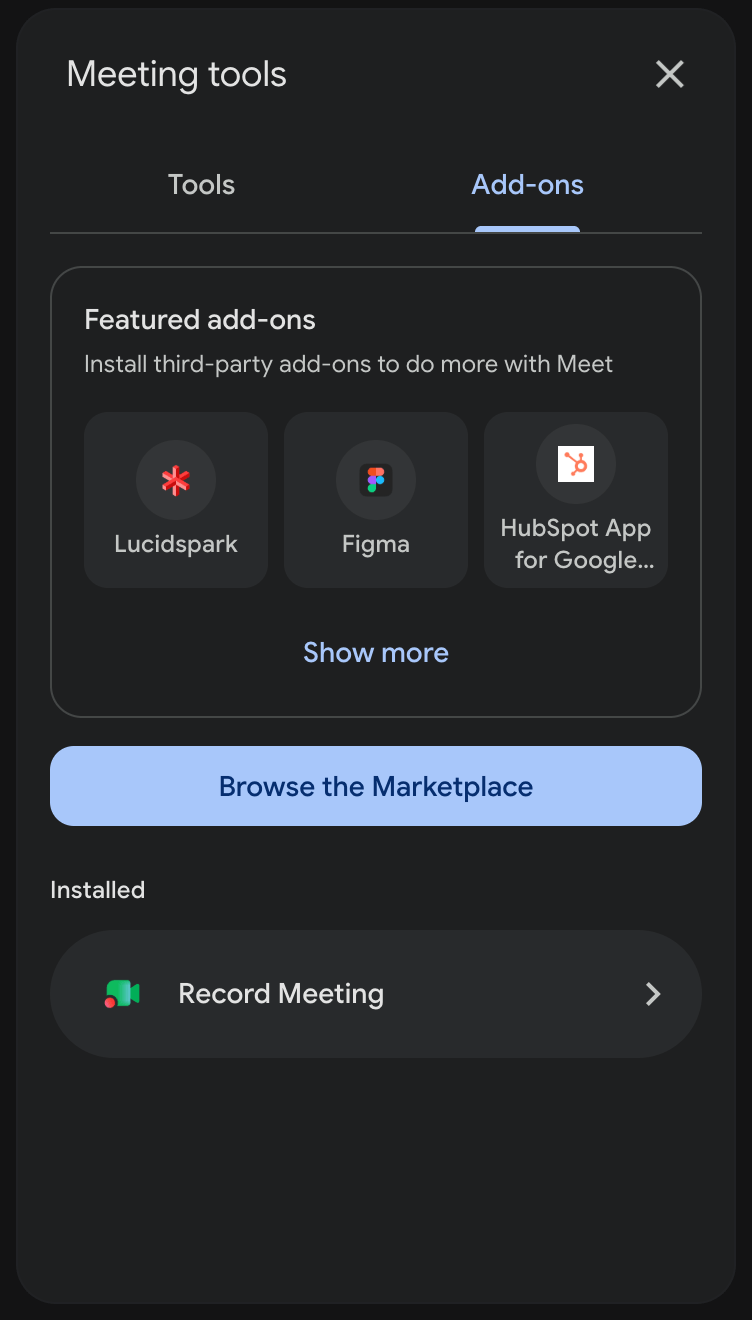
- 右下にある「Meeting tools」(9つの点を持つアイコン)をクリックします。古いバージョンのMeetでは、「Activities」という名称です。
- 「Add-ons」タブを開き、「Record Meeting」を選択します。
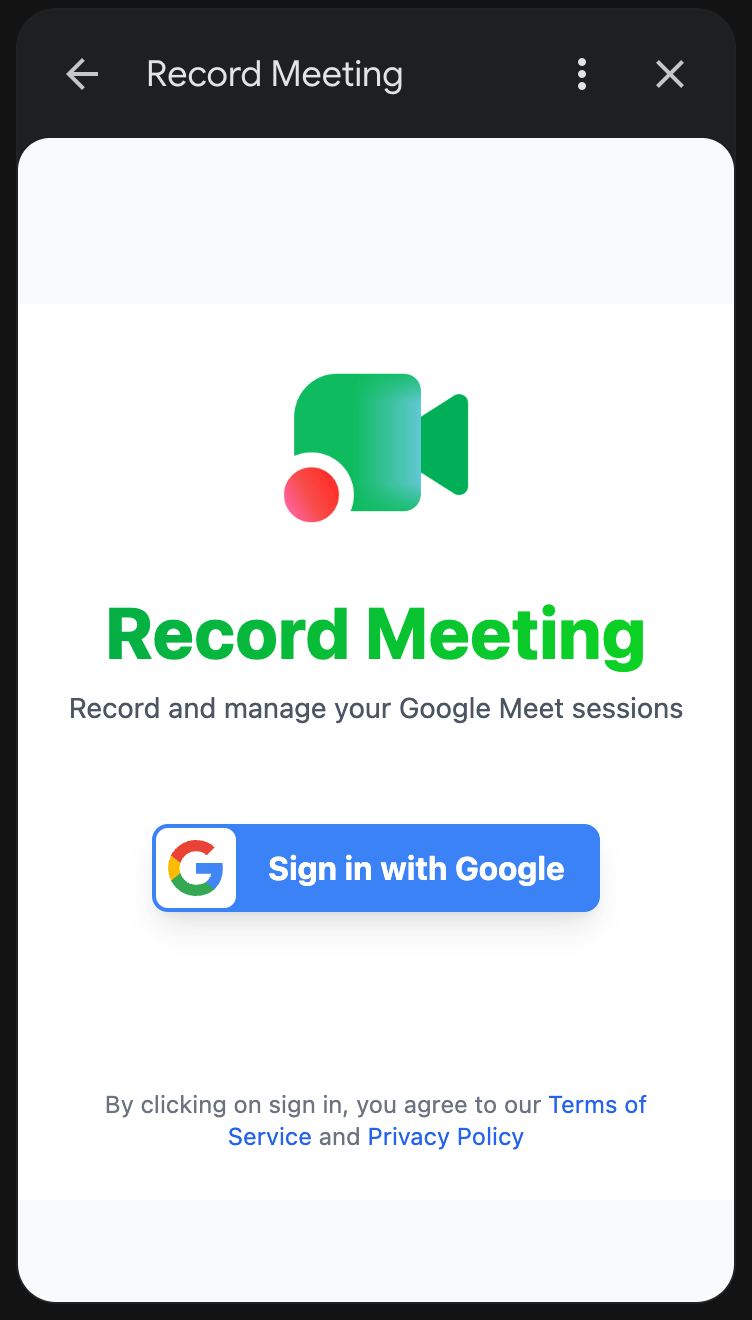
- 初回は「Sign in with Google」をクリックし、ポップアップウィンドウでサインインを完了させます。
会議を録画する
Section titled “会議を録画する”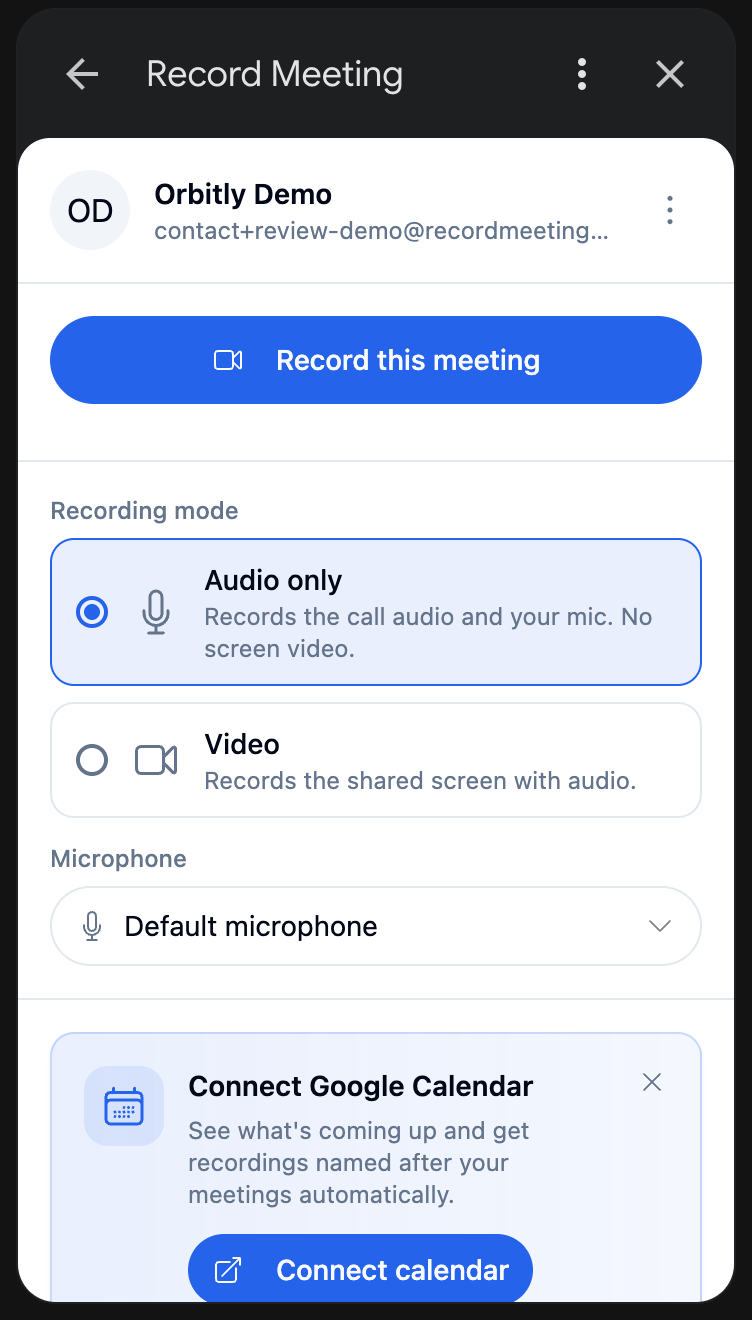
- アドオンパネル内で「Record this meeting」をクリックします。
- 録画ウィンドウが開きます。ブラウザからマイクへのアクセスが求められた場合は許可してください。
- 「Share screen」をクリックします。
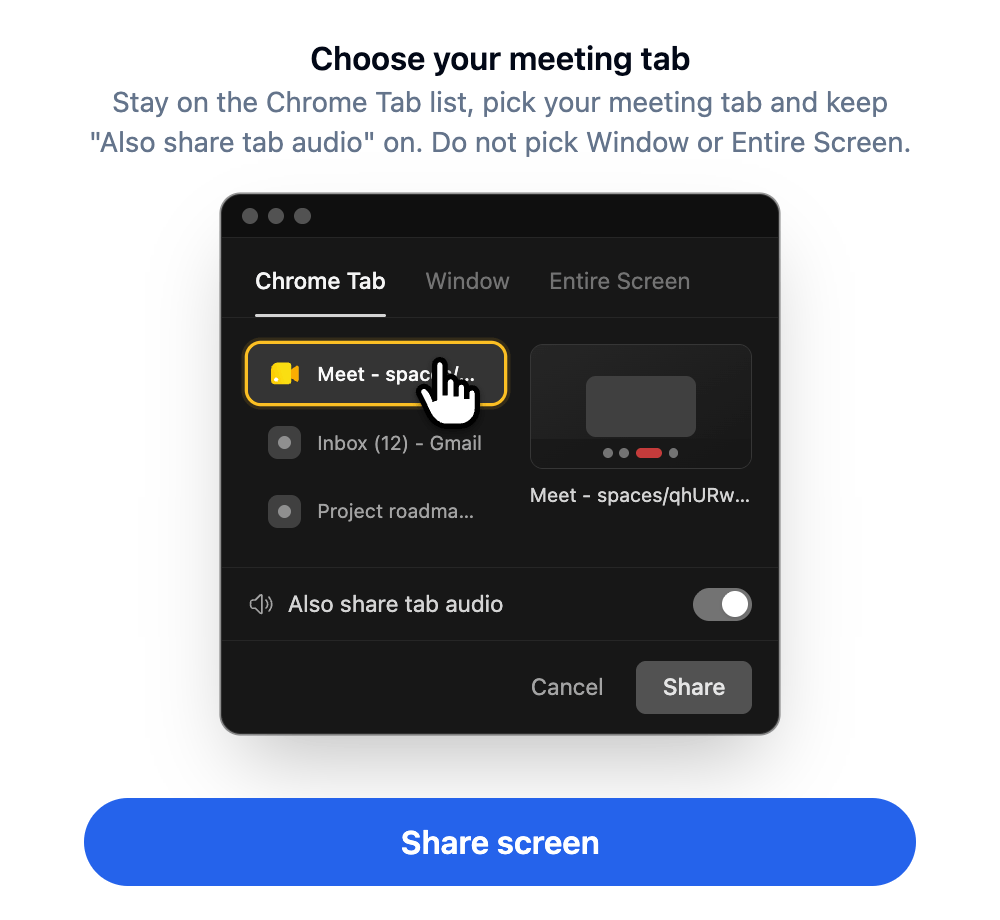
- ブラウザの画面選択画面で、「Chrome Tab」のリストに留まり、会議のタブを選択し、「Also share tab audio」をオンにしたままにします。音声を含まないため、「Window」や「Entire Screen」は選択しないでください。
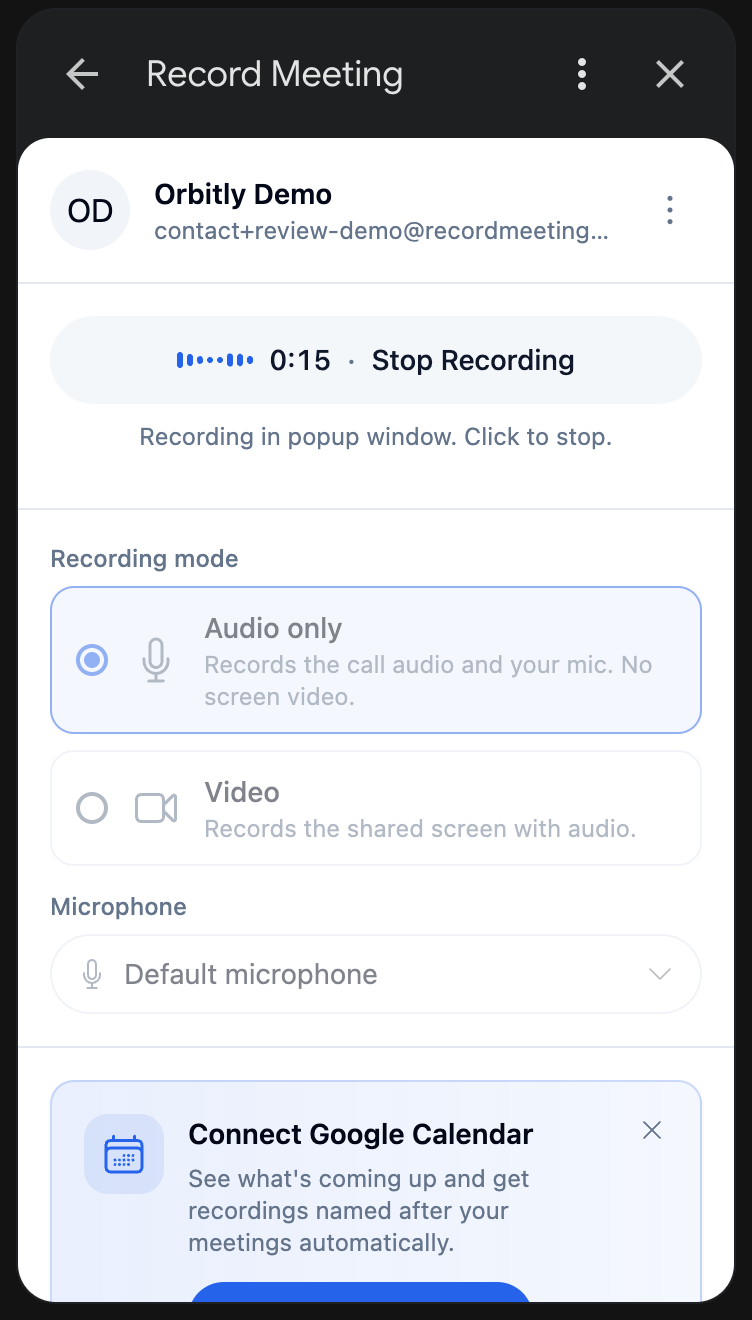
- 通話に戻ります。パネルは、録画中のタイマーと音声レベルを表示します。
- 終了するには、アドオンパネル内の「Stop Recording」をクリックします。
アドオンは通話が終了しても停止しないため、「Stop Recording」をクリックすることを忘れないでください。ブラウザの「Stop sharing」バーをクリックした場合は、アドオンが「Keep recording?」と尋ねてきます。タブを再度共有するには「Keep recording」を選択するか、「Finish」で録画を終了します。
パネルに表示される設定
Section titled “パネルに表示される設定”録画する前に、以下の設定を行うことができます。
- OrganizationとFolder: 録画を保存する場所。
- Microphone: 記録するマイク。
- Recording mode: Audio only(通話の音声とマイクの音声のみ、画面の動画なし)またはVideo(音声付きで共有する画面)。
- テーマと言語。
無料プランでは、利用状況がパネルに表示されます。例えば「Recordings used: 3 of 5」や「Upgrade to Pro」といった表示です。上限に達しても録画は可能ですが、新規の録画はアップグレードするまでロックされます。
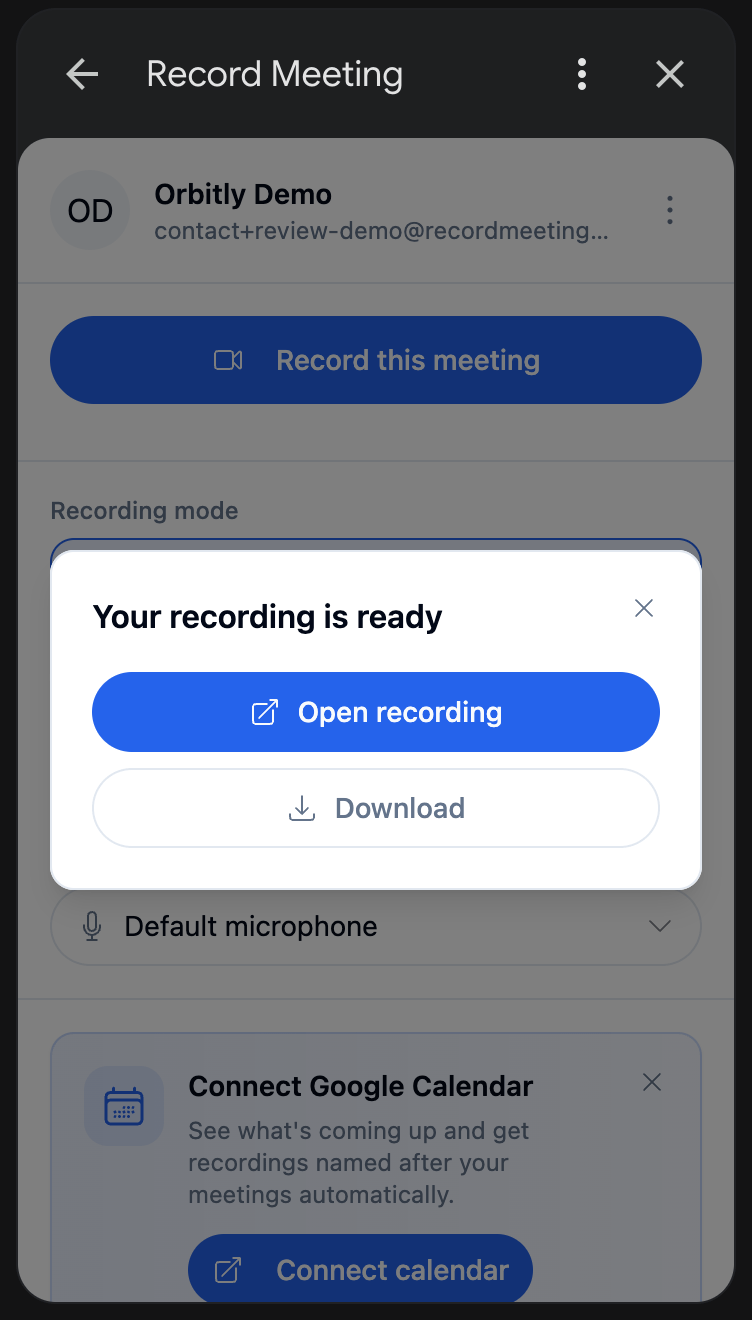
録画を停止すると、録画ページが新しいタブで開き、パネルには「Your recording is ready」と表示され、2つのボタンが提供されます。
- Open recordingはウェブアプリ内で開きます。
- Downloadはファイルを保存します。ダウンロードはプランによって異なり、Plans & pricingを参照してください。
パネルには、直近の録画リストも表示されます。
- コンピューター専用です。 このアドオンは、コンピューターのブラウザで実行されているGoogle Meetを録画します。Google Meetモバイルアプリからは録画できません。
- ChromeまたはEdgeが必要です。 Google ChromeまたはMicrosoft Edgeで会議を開いてください。SafariではMeetのタブを録画することはできません。
- Google Meetのみです。 ZoomやTeamsなどの他のプラットフォームを使用する場合は、Chrome拡張機能 または デスデスクトースアプリケーション をご利用ください。
- 動画の録画は6時間、音声の録画は12時間まで可能です。1秒未満の録画は破棄されます。