
Chrome extension
The Chrome extension records calls in your browser tab. It adds a Record button to the call controls on eight platforms and a side panel for your account and settings. No bot joins the call.
Install it
Section titled “Install it”- Open the Chrome Web Store listing and click Add to Chrome.
- Pin the extension to your toolbar.
- Click the Record Meeting icon to open the side panel, then click Sign in with Google.
The extension works in Google Chrome on a computer. It is also listed on Microsoft Edge Add-ons for Microsoft Edge.
The Record button in your calls
Section titled “The Record button in your calls”The extension adds a Record button to the call controls on Google Meet, Zoom, Microsoft Teams, Webex, Telegram, Discord, WhatsApp and Slack huddles. The exact sites are listed in Supported platforms.

- Join the call in a browser tab.
- Click the Record button.
- Choose the recording mode and your microphone, then start.
- When the browser asks what to share, pick the call’s tab and keep tab audio on.
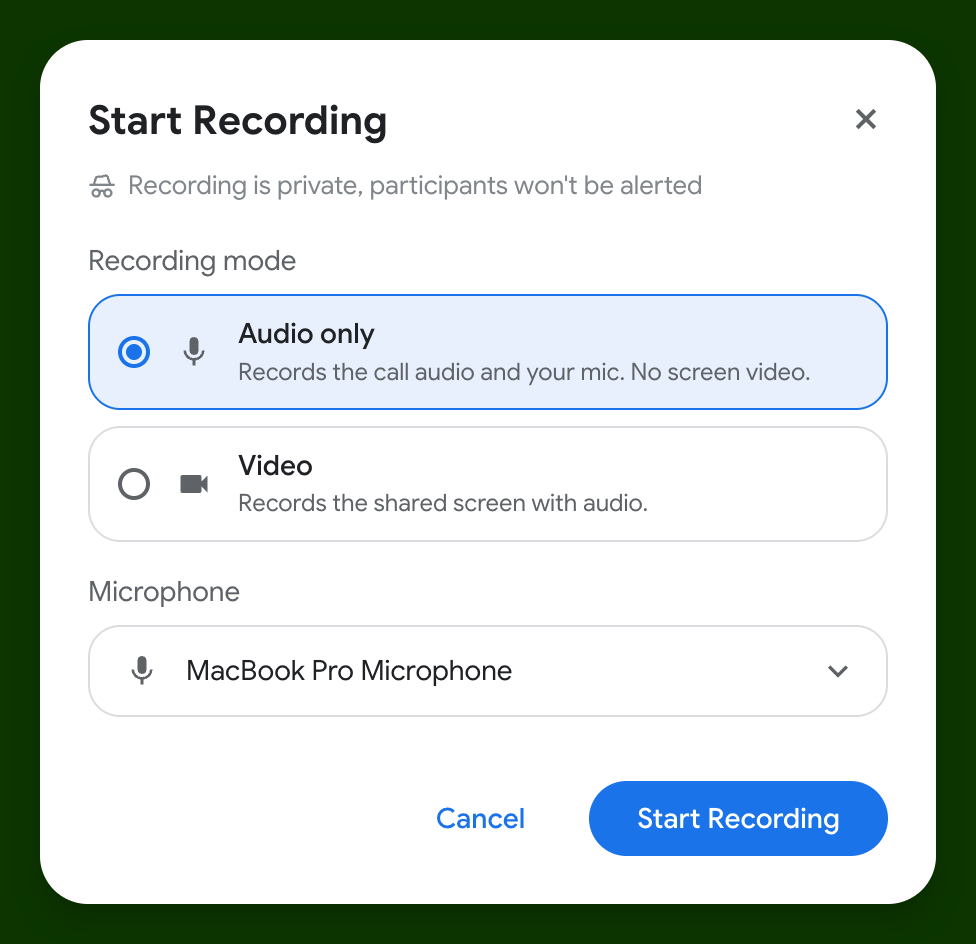
While it records, the button shows a timer and a sound level for your microphone and the call. Click it again to stop. The recording also stops when the call ends.
Audio only or Video
Section titled “Audio only or Video”You choose the Recording mode each time you start:
| Mode | What it records |
|---|---|
| Audio only | The call audio and your mic. No screen video. |
| Video | The shared screen with audio. |
Both modes record your microphone. If the microphone is blocked or missing, the recording does not start and the extension shows how to fix it.
The side panel
Section titled “The side panel”Click the Record Meeting icon in the toolbar to open the side panel.
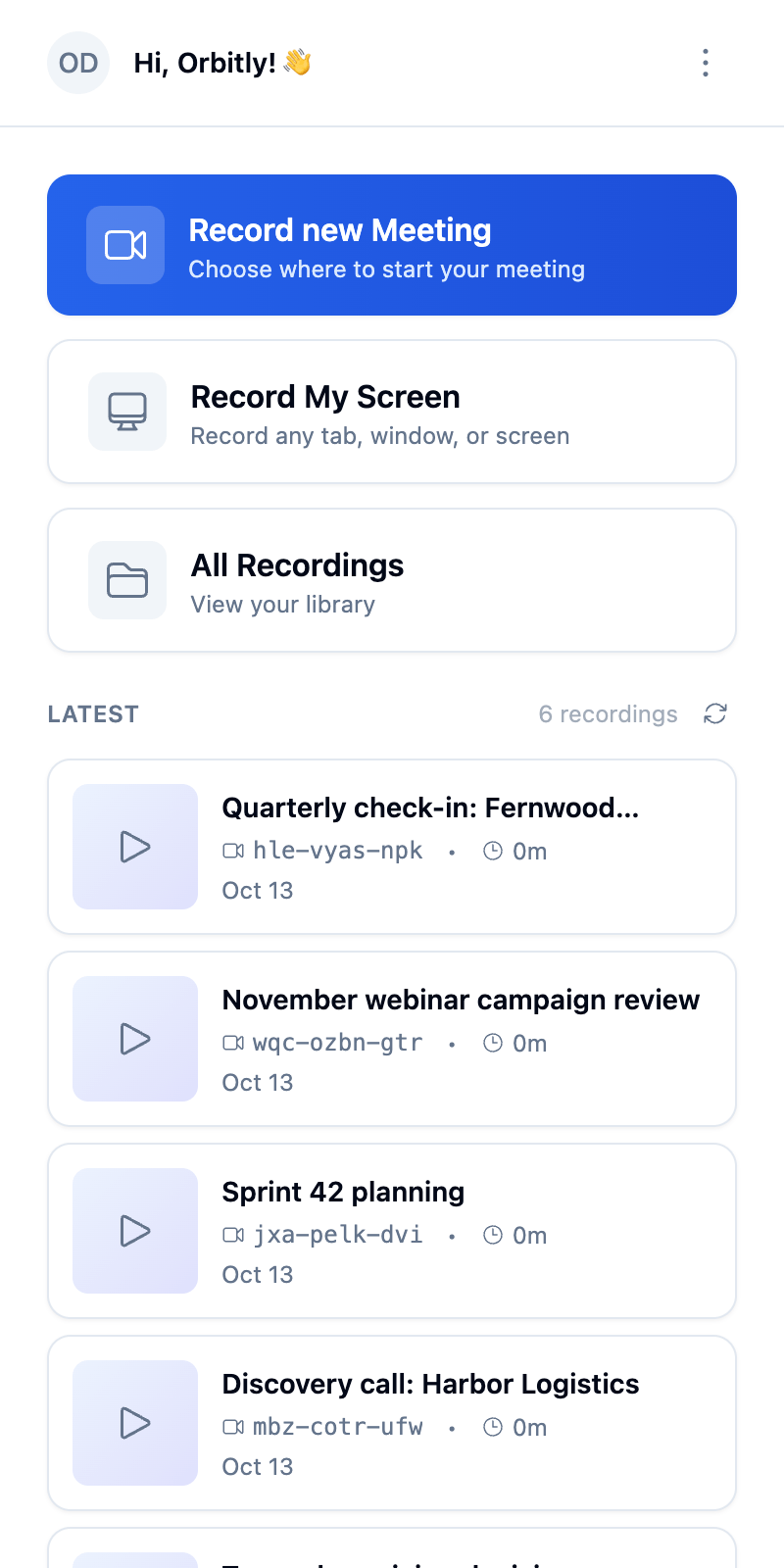
In the side panel you can:
- Sign in with Google and sign out.
- See your latest recordings and their status, and open All Recordings in the web app.
- Start and stop a recording while you are in a call.
- Choose the Organization and Folder that new recordings are saved to (Personal and No folder by default).
- Pick the Microphone.
- Switch the Theme between Light, Dark and System.
- Change the language.
- Start Record My Screen to record any tab, window or screen. See Record a tab, your screen or a file.
On the Free plan the side panel also shows how many recordings you have used.
After the call
Section titled “After the call”The recording uploads while the call is running, so most of it is already saved when you stop. If the upload is not finished when the call ends, the extension shows Your recording is still uploading with the progress and the time left.
Keep that tab open until it says Upload completed, then click Open recording.
Limits
Section titled “Limits”- A video recording stops at 6 hours and an audio recording at 12 hours.
- On the Free plan you can open recordings up to 1 hour. A longer recording is still saved, and it is locked until you upgrade.
- Recordings shorter than 1 second are discarded.
- Calls in desktop apps (for example the Zoom or Slack app) are not visible to a browser extension. Use the desktop app for macOS for those.