
Generate
The Generate tab of the recording page turns the meeting notes into things you can send or work with: a follow-up email, a list of action items, a presentation and a meeting document. It is part of Pro and Enterprise.
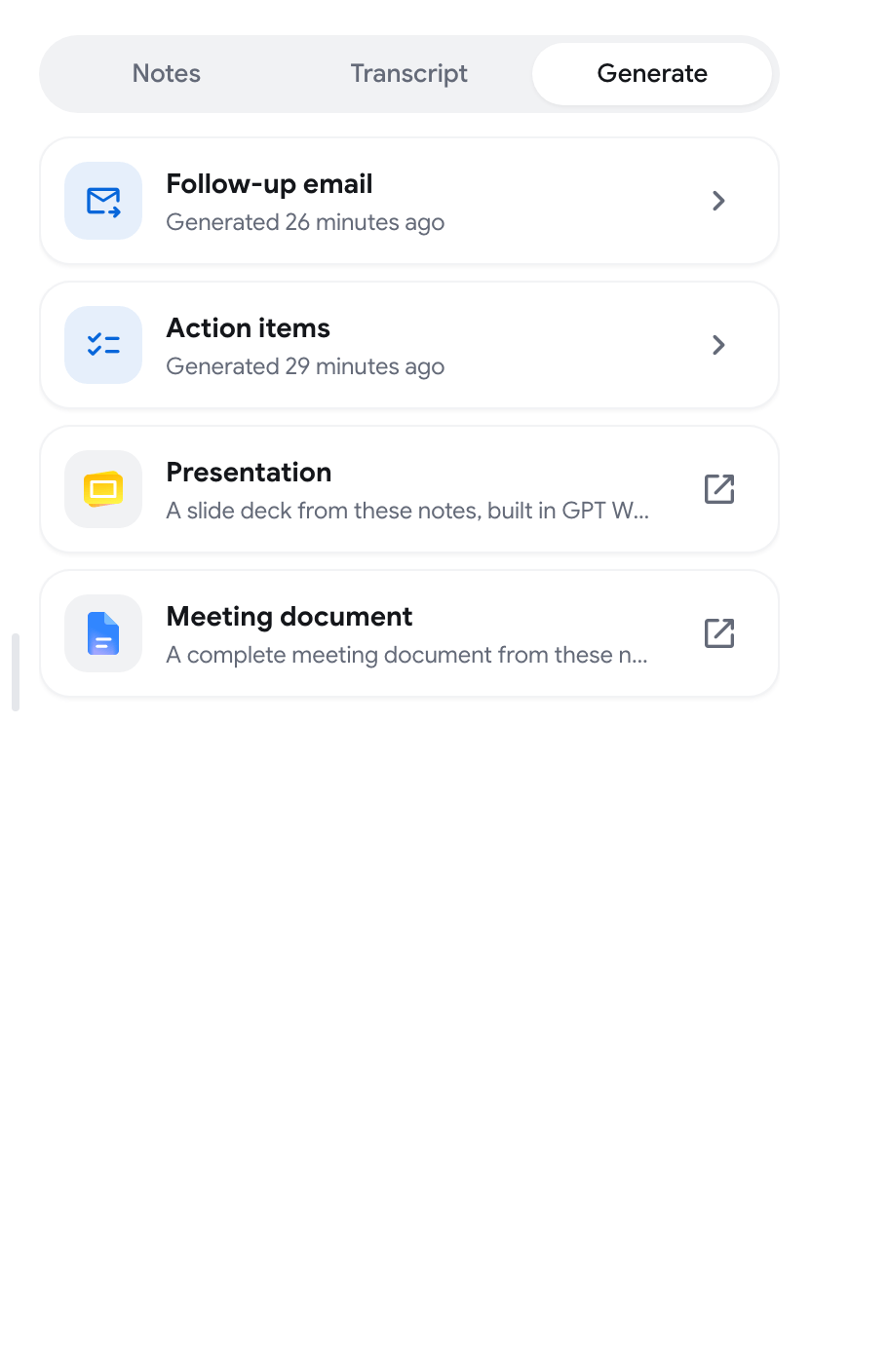
The tab unlocks when the meeting notes are ready. See Meeting notes and chat.
Write a follow-up email
Section titled “Write a follow-up email”-
Open the Generate tab and click Generate on the Follow-up email row.
-
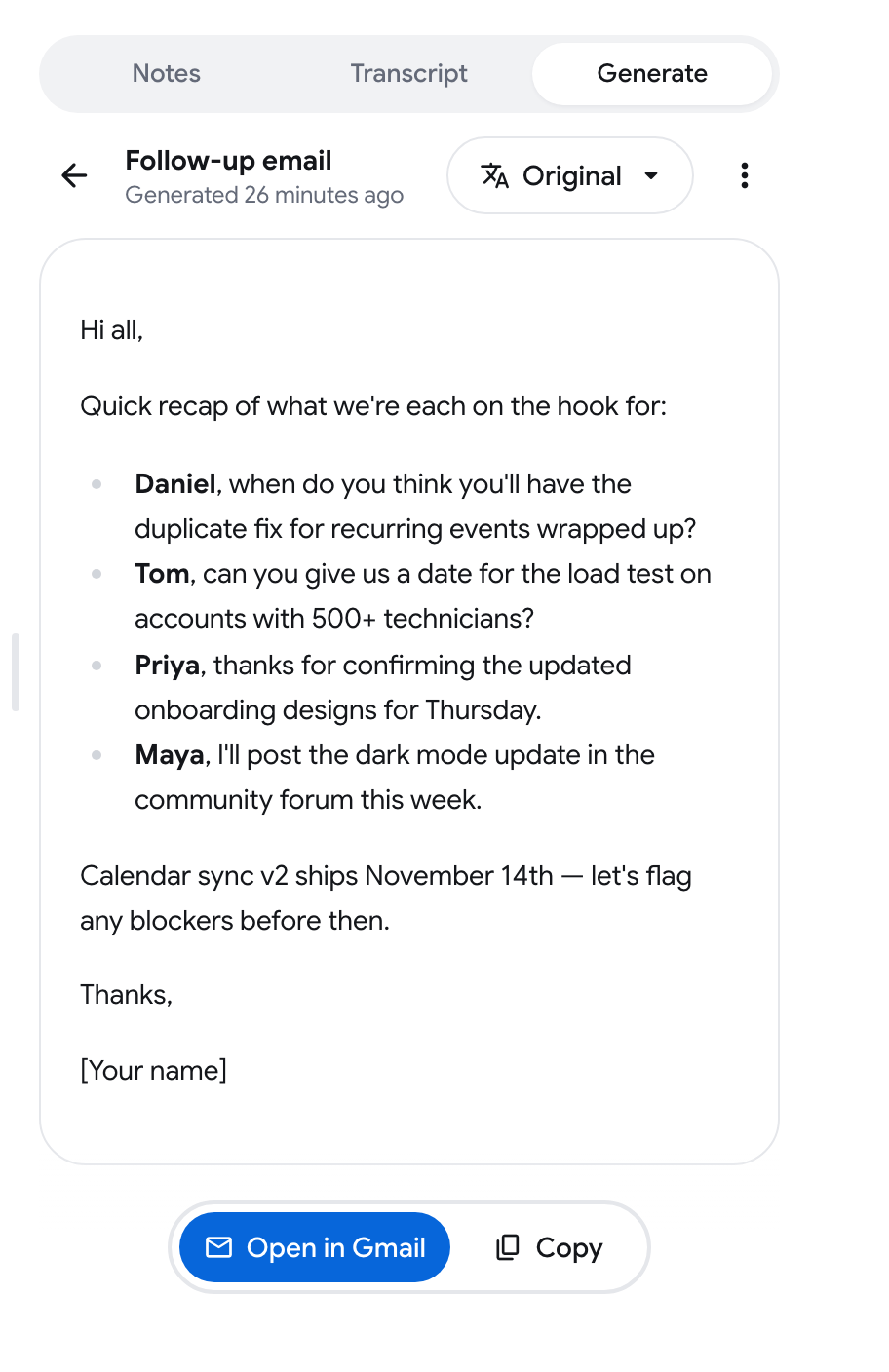
Wait while the email is written. It is short and focused on next steps.
-
Click Open in Gmail to open a new Gmail message with the subject and text filled in, or Copy to paste the text elsewhere.
Nothing is sent for you. You review and send the email in Gmail.
Get the action items
Section titled “Get the action items”- Click Generate on the Action items row.
- The list appears in two sections: To do for tasks that were clearly assigned, and Inferred for tasks that follow from the discussion.
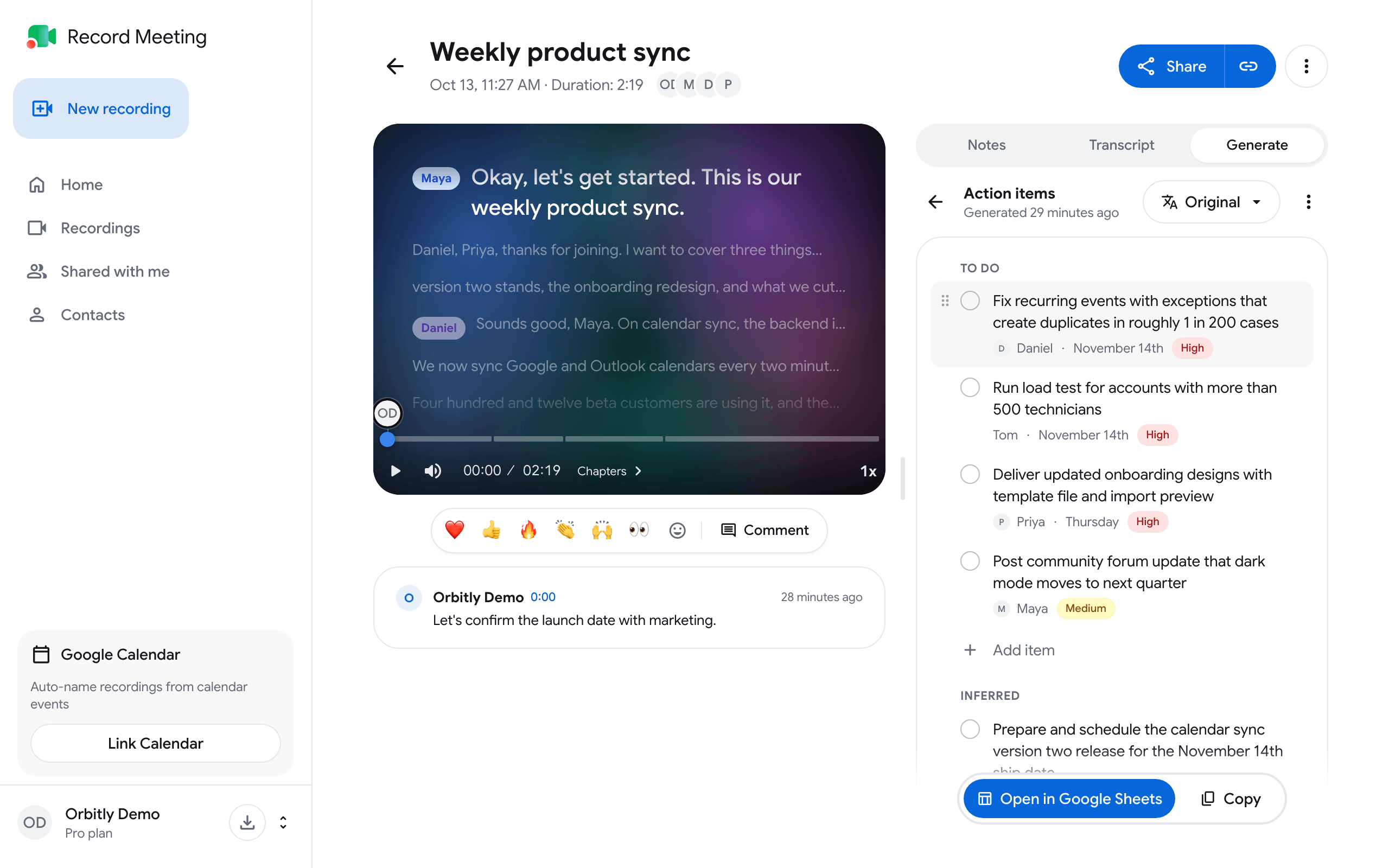
If the meeting had no tasks, you see No action items were found in this meeting.
Edit the list
Section titled “Edit the list”Click an item to open it. You can then:
- Rewrite the task.
- Set the Owner: search the people from the meeting or type any name.
- Set the Due date: Today, Tomorrow, End of week, Next week or Pick a date.
- Set the Priority: High, Medium or Low.
- Move the item to the other section.
- Delete it. A message with Undo appears for a few seconds.
Other things you can do in the list:
- Tick the round checkbox to mark an item as done.
- Click Add item under a section to add a task of your own.
- Drag an item by its handle to reorder it.
Changes are saved automatically.
Send the list somewhere
Section titled “Send the list somewhere”- Open in Google Sheets creates a spreadsheet in your Google account with the columns Done, Task, Owner, Due, Section and Priority. Google may ask for permission the first time.
- Copy puts the list on your clipboard as a task list.
Create a presentation or a meeting document
Section titled “Create a presentation or a meeting document”Presentation and Meeting document are built in GPT Workspace, our companion product for Google Slides and Google Docs.
Click the row. GPT Workspace opens in a new tab with your meeting notes as the starting prompt, and builds the slide deck or the document there. You may need to sign in to GPT Workspace first.
Translate, regenerate or delete
Section titled “Translate, regenerate or delete”Once the email or the action items are ready:
- Use the language button at the top (it shows Original) to translate the result. Copy, Open in Gmail and Open in Google Sheets then use the translated text. Action items can be edited only in Original.
- Open the three-dot menu and click Regenerate to write it again from the current notes, or Delete to remove it. You can generate it again at any time.
If you change the meeting notes after generating, the row shows Notes changed. Regenerate to bring the result up to date.
After you click Open in Gmail or Google Sheets
Section titled “After you click Open in Gmail or Google Sheets”Before the file opens, a dialog suggests the GPT Workspace Chrome extension. Click Continue to Gmail or Continue to Sheets to go on to your file.