
Home and calendar
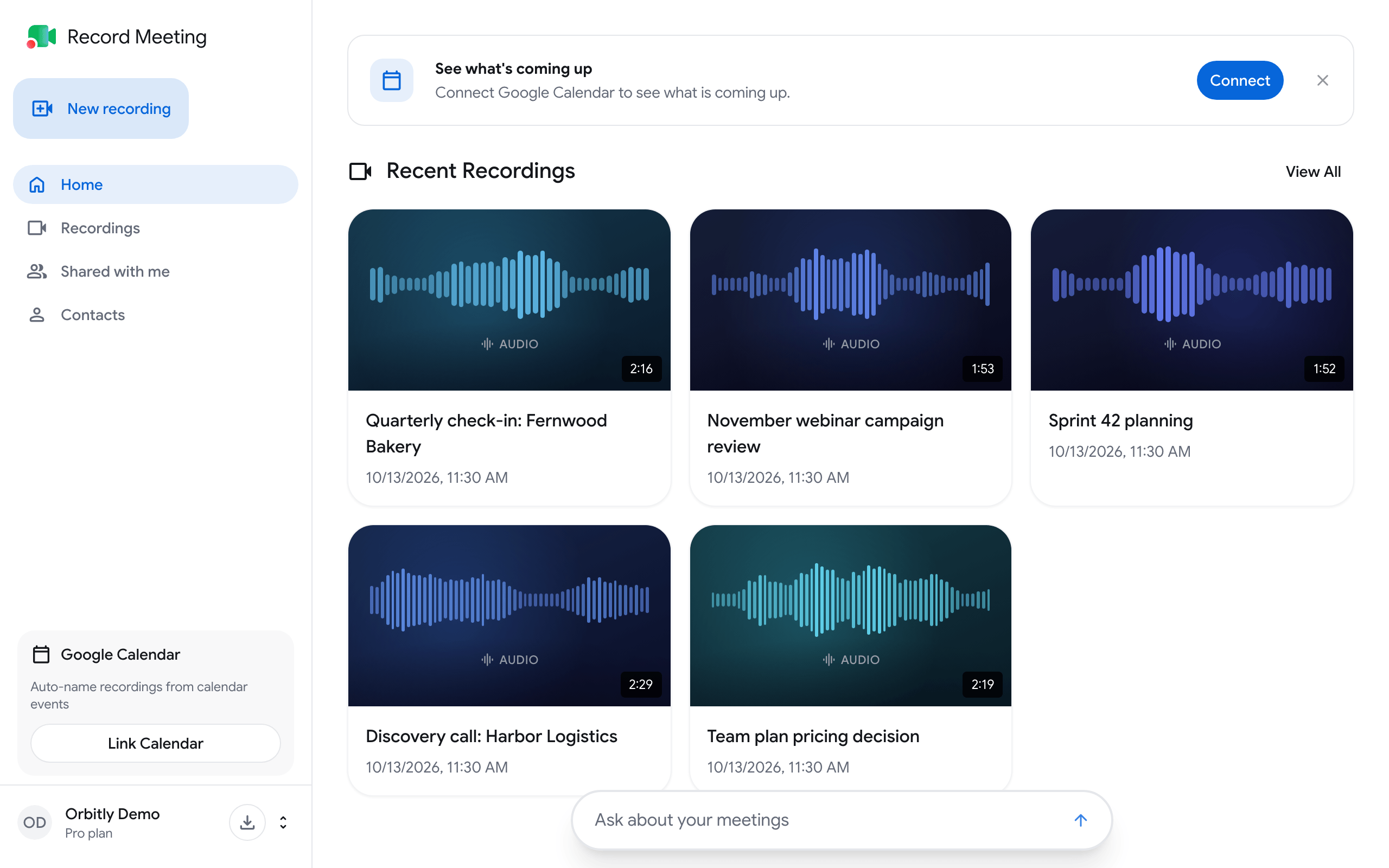
Home is the first page you see after signing in at recordmeeting.com/app. It shows what is coming up in your calendar, your latest recordings, and a chat about all your meetings.
See your upcoming meetings
Section titled “See your upcoming meetings”Until you connect a calendar, the top of Home shows the See what’s coming up card.
- Click Connect on the card.
- Choose your Google account and allow access to your calendar.
After that, the Coming up section lists your Google Calendar events for the next 30 days, grouped by day.
- Click an event to open its meeting link. If the event has no meeting link, the calendar event opens.
- An event that is happening right now is marked Now.
- Use the arrows next to Coming up to see later days.
If you do not want the card, close it with the X. You can still connect the calendar later from Settings. See Calendar and Google connections.
Open a recent recording
Section titled “Open a recent recording”Recent Recordings shows your latest recordings. Click a card to open the recording page, or click View All to go to the full recordings list.
If you have no recordings yet, this section shows No recordings yet and a New recording button.
Ask about all your meetings
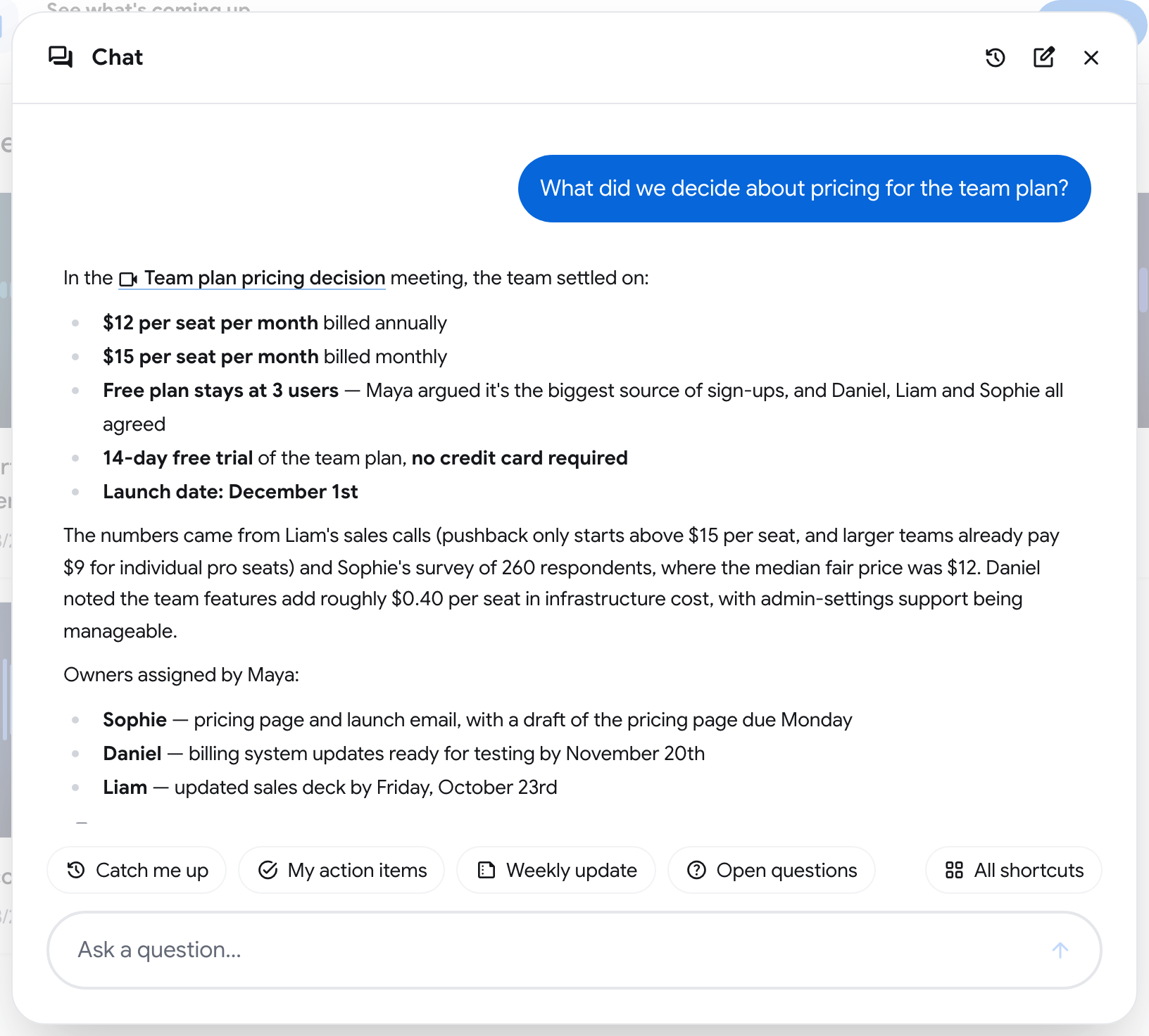
Section titled “Ask about all your meetings”On Pro and Enterprise, once you have at least one recording, the Ask about your meetings bar sits at the bottom of Home. It answers questions using all the recordings you can open, not only one.
-
Click Ask about your meetings. The Chat window opens.
-
Type a question and press Enter, or click a shortcut.
-
Read the answer. The meetings it used are linked in the text or listed after From:. Click one to open that recording.
Shortcuts on Home
Section titled “Shortcuts on Home”| Shortcut | What it asks |
|---|---|
| Catch me up | A summary of your meetings from the last 7 days, meeting by meeting |
| My action items | The open action items assigned to you in recent meetings |
| Weekly update | A short update for your team about the last 7 days |
| Open questions | Questions that came up in recent meetings and were never answered |
Click All shortcuts to see the full list or create your own with New shortcut. You can also type / in the input field to pick a shortcut by name.
Chat history
Section titled “Chat history”In the header of the Chat window, New Chat starts an empty conversation and Chat History opens earlier ones. Hover over an answer to Copy it.
To ask about a single recording instead, use the Ask a question… bar on its page. See Meeting notes and chat.