
Google Meet add-on
The Google Meet add-on puts Record Meeting in the side panel of a Google Meet call. You record from inside Meet, with no browser extension and no bot in the call.
Install it
Section titled “Install it”- Open the Google Workspace Marketplace listing and click Install.
- Approve the Google permissions for your account.
The add-on works with free Gmail accounts and with Google Workspace accounts.
Open it in a call
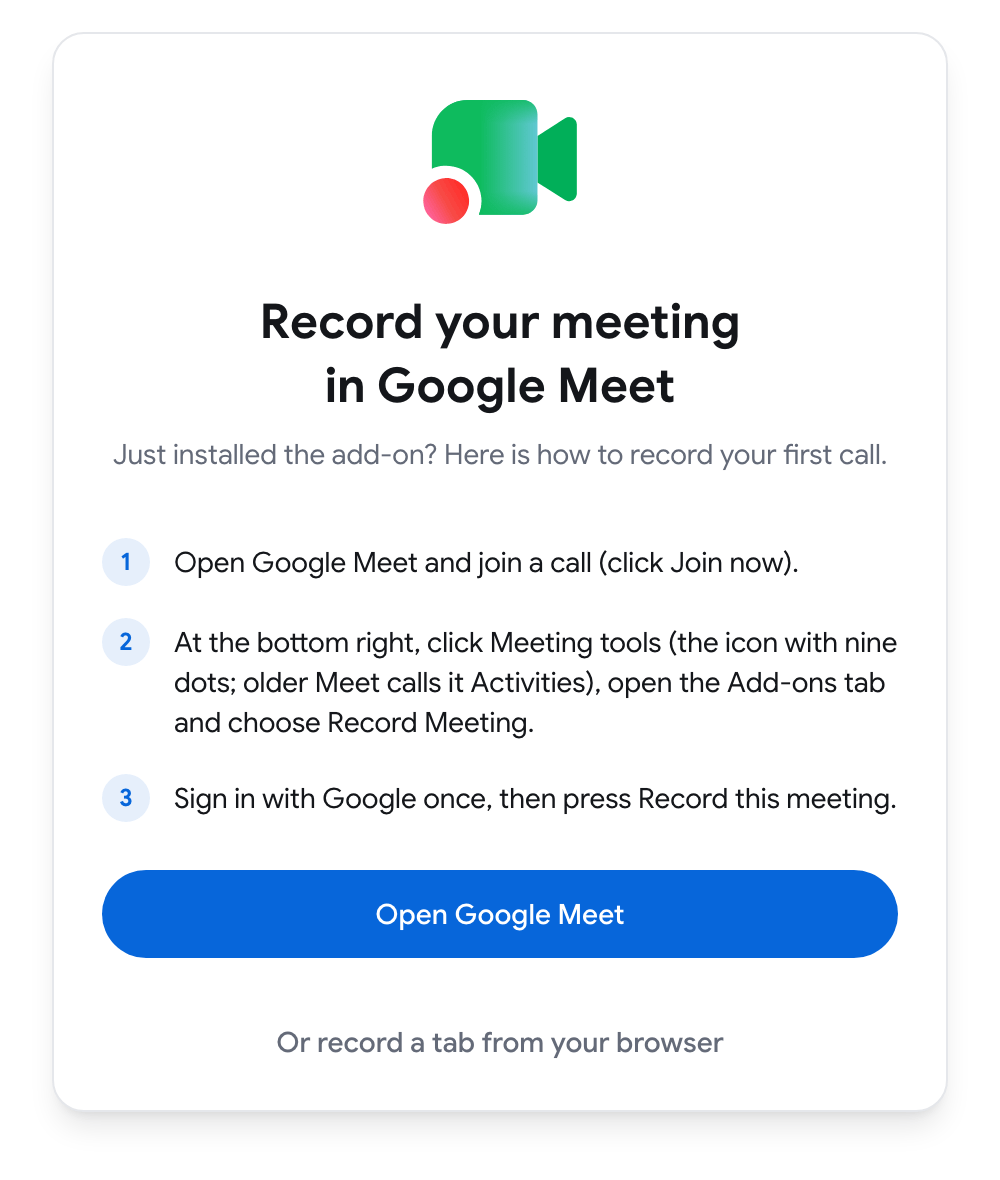
Section titled “Open it in a call”- Open Google Meet in a browser on your computer and join a call (click Join now).
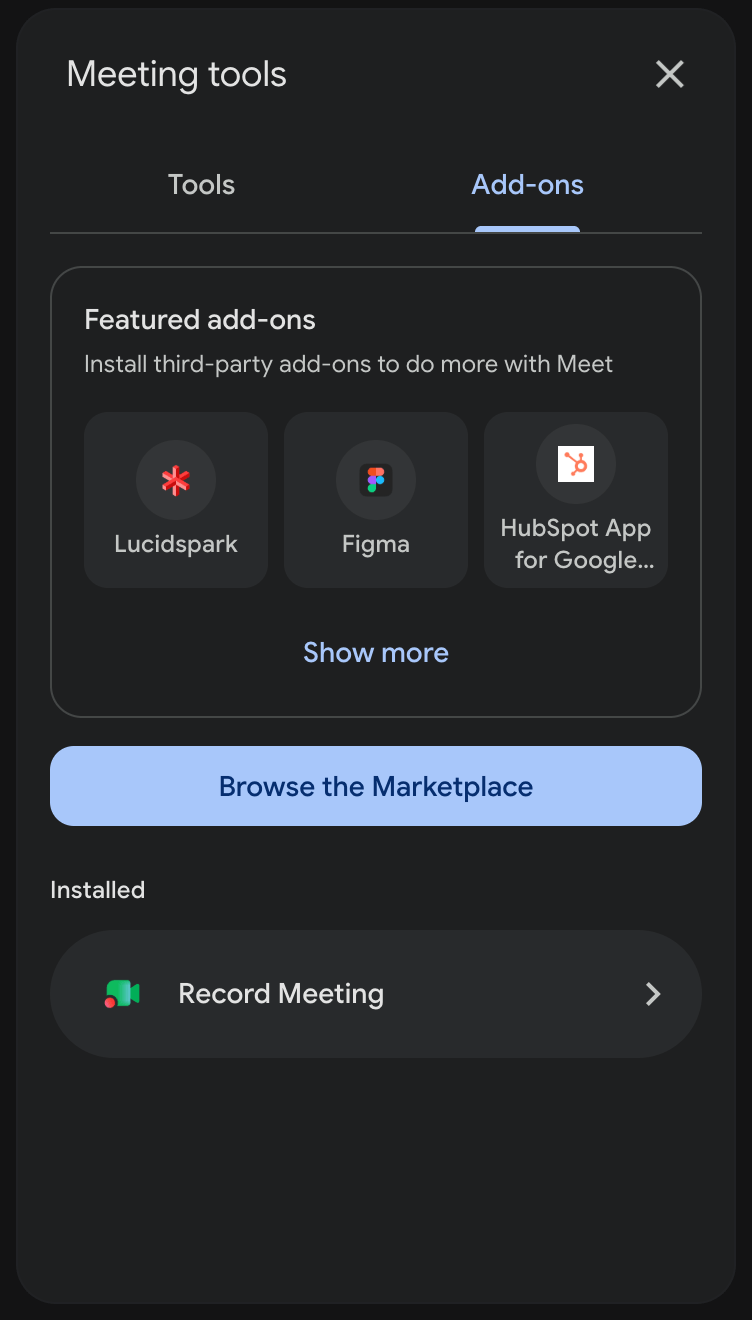
- At the bottom right, click Meeting tools (the icon with nine dots). Older versions of Meet call it Activities.
- Open the Add-ons tab and choose Record Meeting.
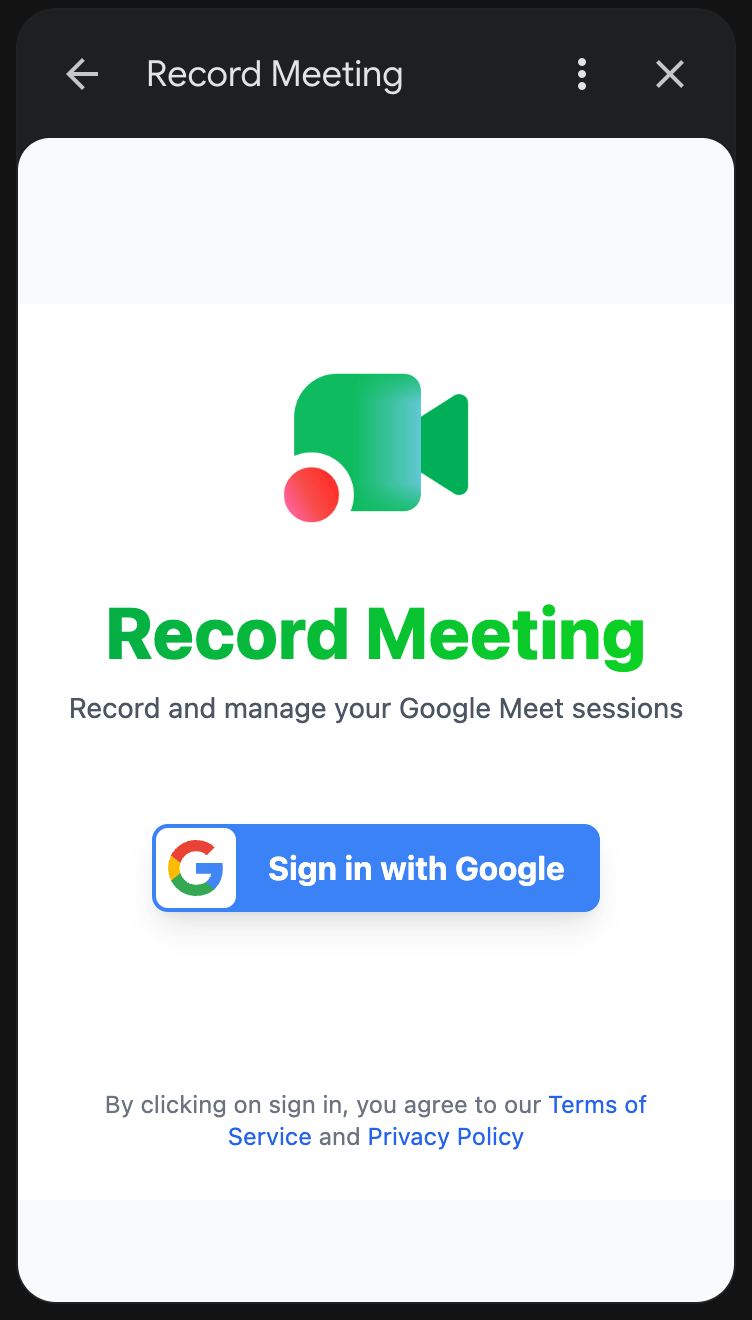
- The first time, click Sign in with Google and finish the sign-in in the popup window.
Record the meeting
Section titled “Record the meeting”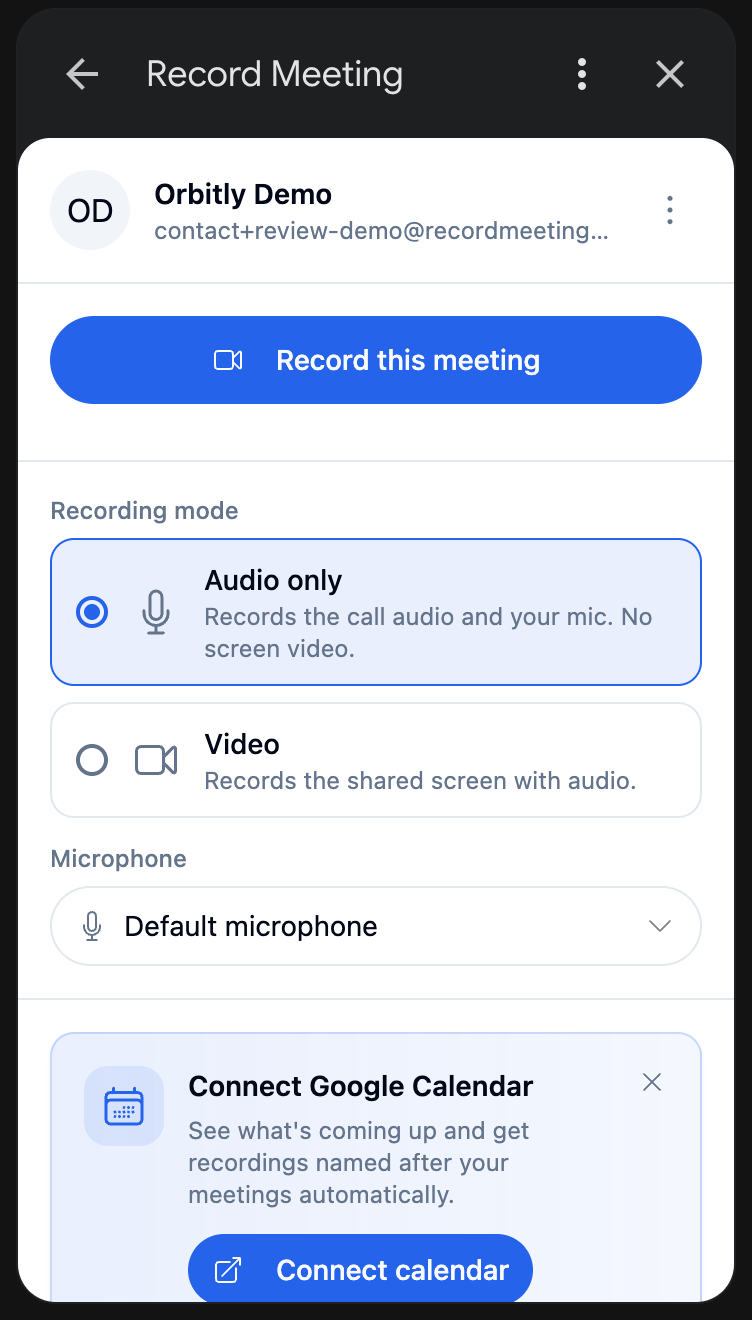
- In the add-on panel, click Record this meeting.
- A recording window opens. Allow microphone access if the browser asks.
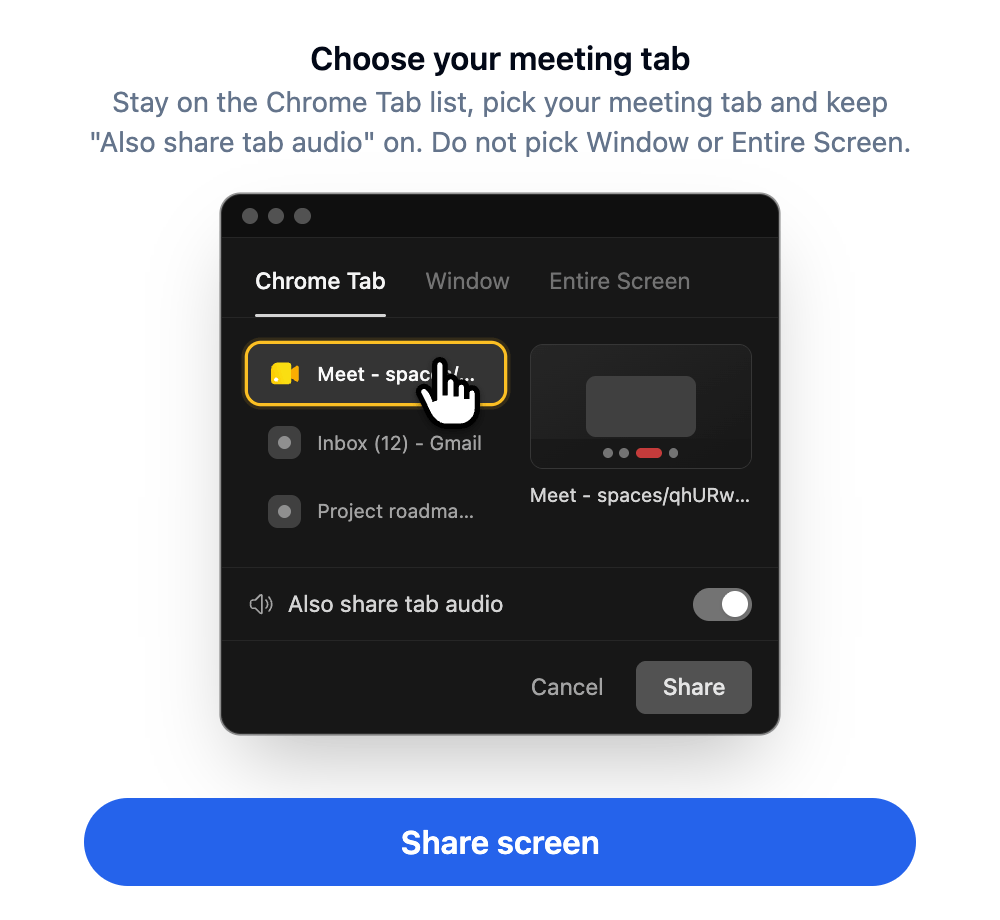
- Click Share screen.
- In the browser’s picker, stay on the Chrome Tab list, pick your meeting tab and keep Also share tab audio on. Do not pick Window or Entire Screen, because they carry no meeting audio.
- Go back to your call. The panel shows a timer and a sound level while it records.
- To finish, click Stop Recording in the add-on panel.
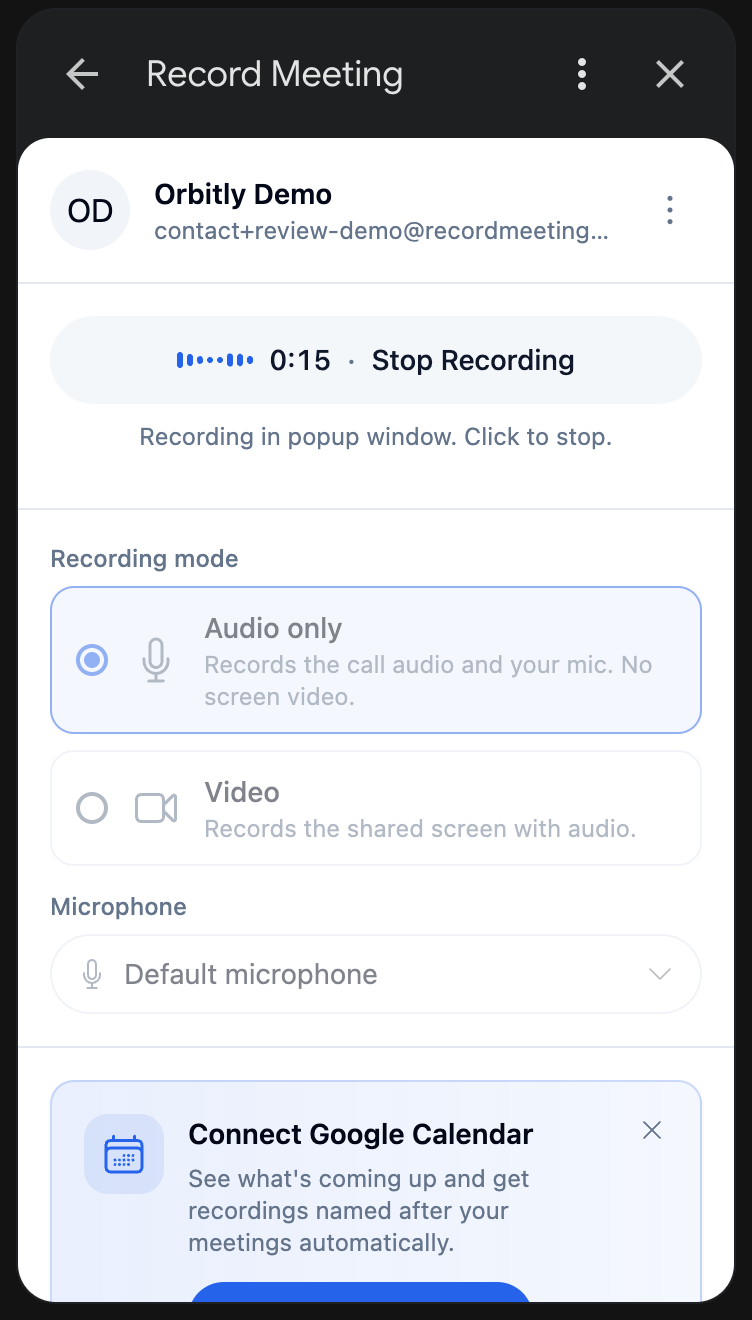
The add-on does not stop when the call ends, so remember to click Stop Recording. If you click the browser’s Stop sharing bar, the add-on asks Keep recording? Choose Keep recording to share the tab again or Finish to end the recording.
What the panel shows
Section titled “What the panel shows”Before you record, you can set:
- Organization and Folder: where the recording is saved.
- Microphone: which microphone is recorded.
- Recording mode: Audio only (the call audio and your mic, no screen video) or Video (the shared screen with audio).
- Theme and language.
On the Free plan the panel shows your usage, for example Recordings used: 3 of 5, with Upgrade to Pro. When the limit is reached you can still record. New recordings are locked until you upgrade.
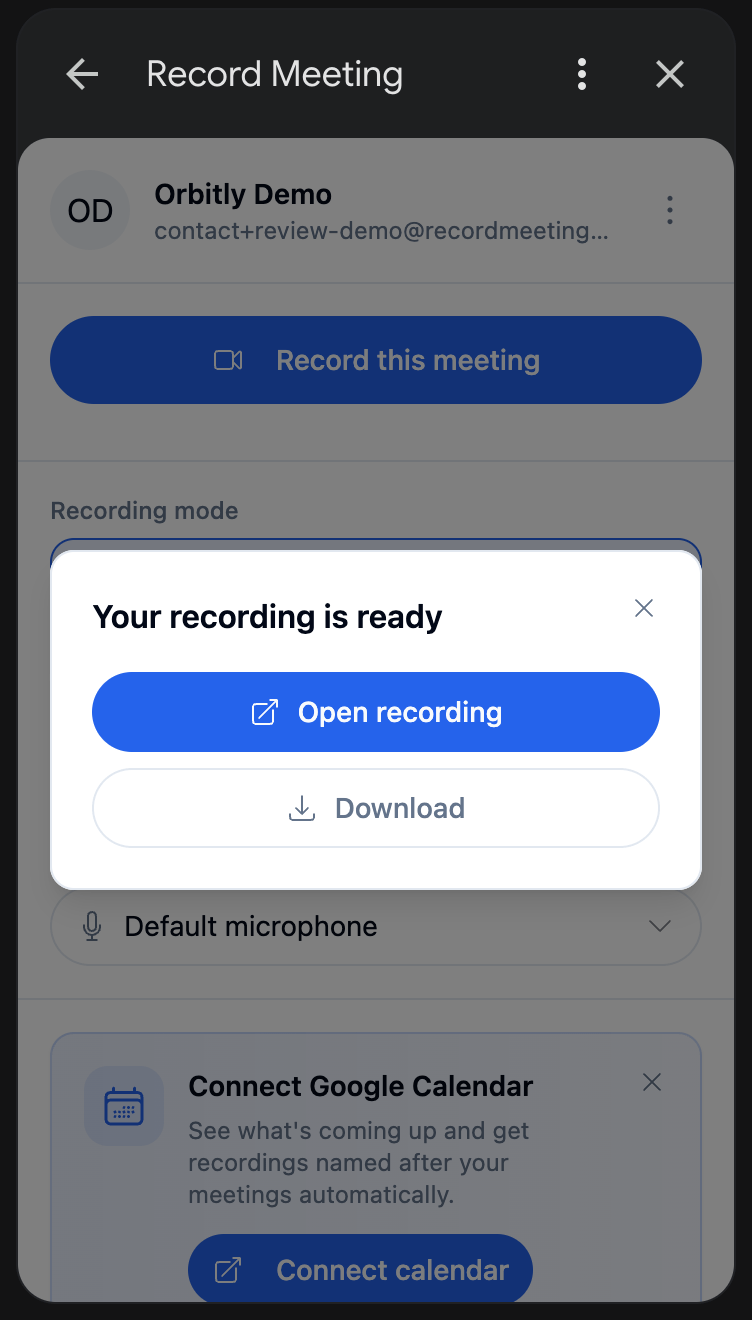
After you stop, the recording page opens in a new tab, and the panel shows Your recording is ready with two buttons:
- Open recording opens it in the web app.
- Download saves the file. Downloads depend on your plan, see Plans & pricing.
The panel also lists your recent recordings.
Limits
Section titled “Limits”- Computer only. The add-on records Google Meet in a browser on a computer. It does not record from the Google Meet mobile app.
- Chrome or Edge. Open the meeting in Google Chrome or Microsoft Edge. Safari cannot record a meeting tab.
- Google Meet only. For Zoom, Teams and other platforms, use the Chrome extension or the desktop app.
- A video recording stops at 6 hours and an audio recording at 12 hours. Recordings shorter than 1 second are discarded.