
The recording page
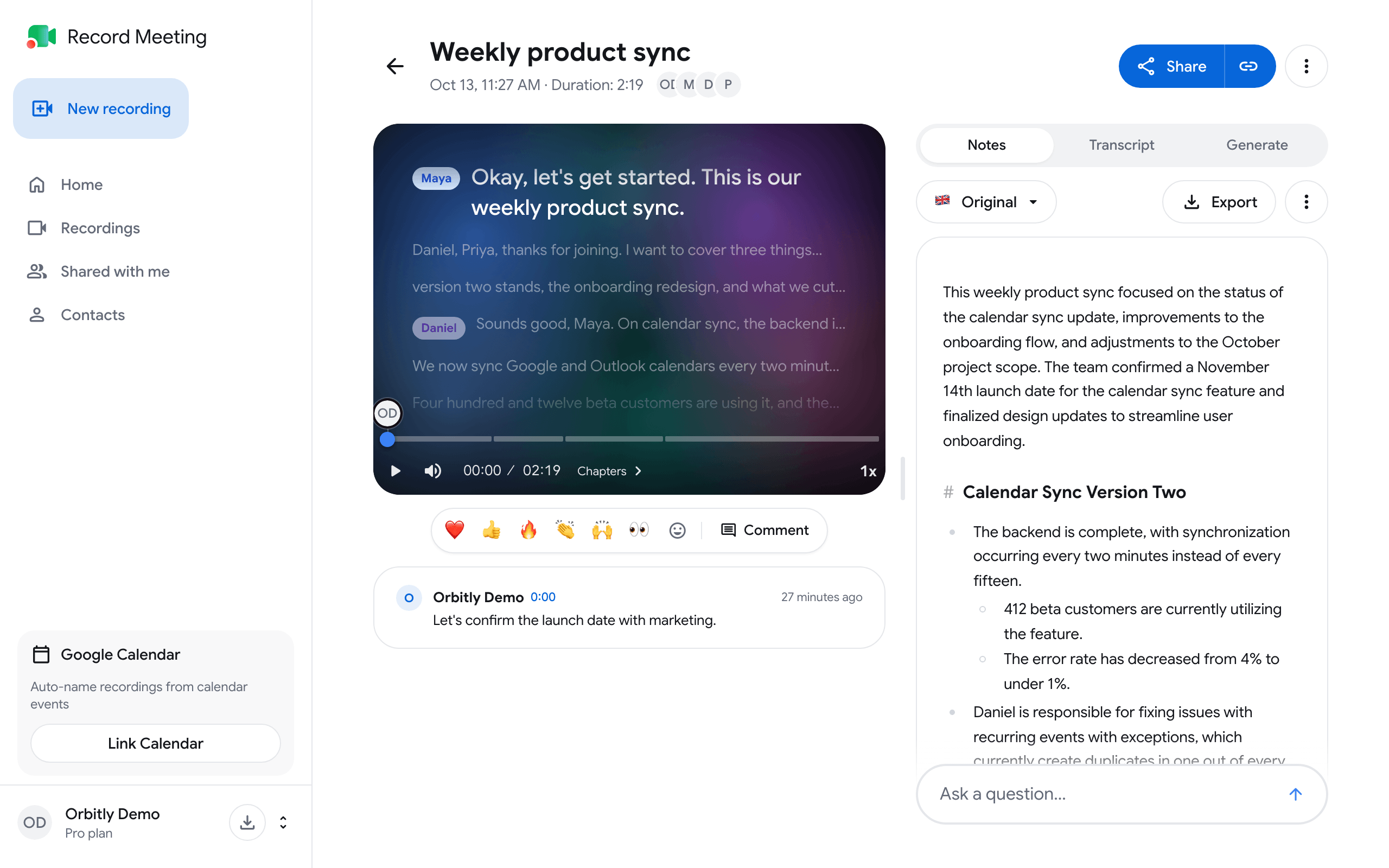
Clicking a recording opens its page. The player is on the left, and a side panel with the notes, the transcript and other tools is on the right. On a narrow screen the panel moves under the player.
Rename the recording
Section titled “Rename the recording”Click the title at the top of the page, type a new name and press Enter. Under the title you see the date, the length and the participants of the meeting.
You can rename once the video is ready to play.
Play the recording
Section titled “Play the recording”The control bar has play and pause, volume, the current time, Chapters, the speed button and, for video, fullscreen. If you come back to a recording you did not finish, playback continues where you left off. Click Start over to go back to the beginning.
Keyboard shortcuts work when you are not typing in a field:
| Key | Action |
|---|---|
| Space or K | Play or pause |
| Left and Right arrows | Back or forward 5 seconds |
| J and L | Back or forward 10 seconds |
| Up and Down arrows | Volume |
| M | Mute |
| F | Fullscreen |
| C | Subtitles on or off |
| 0 to 9 | Jump to 0% to 90% of the recording |
| Shift+, and Shift+. | Slower or faster |
Change the playback speed
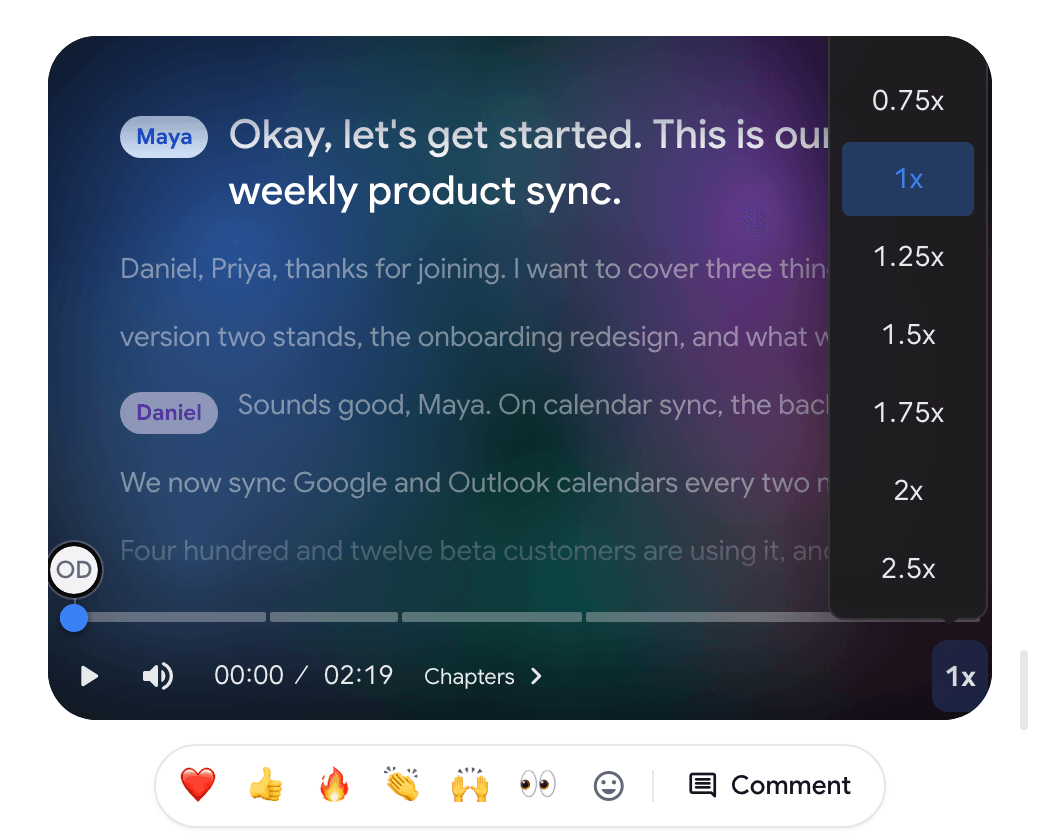
Section titled “Change the playback speed”Click the speed button (1x) in the control bar and choose a speed from 0.5x to 2.5x.
Jump to a chapter
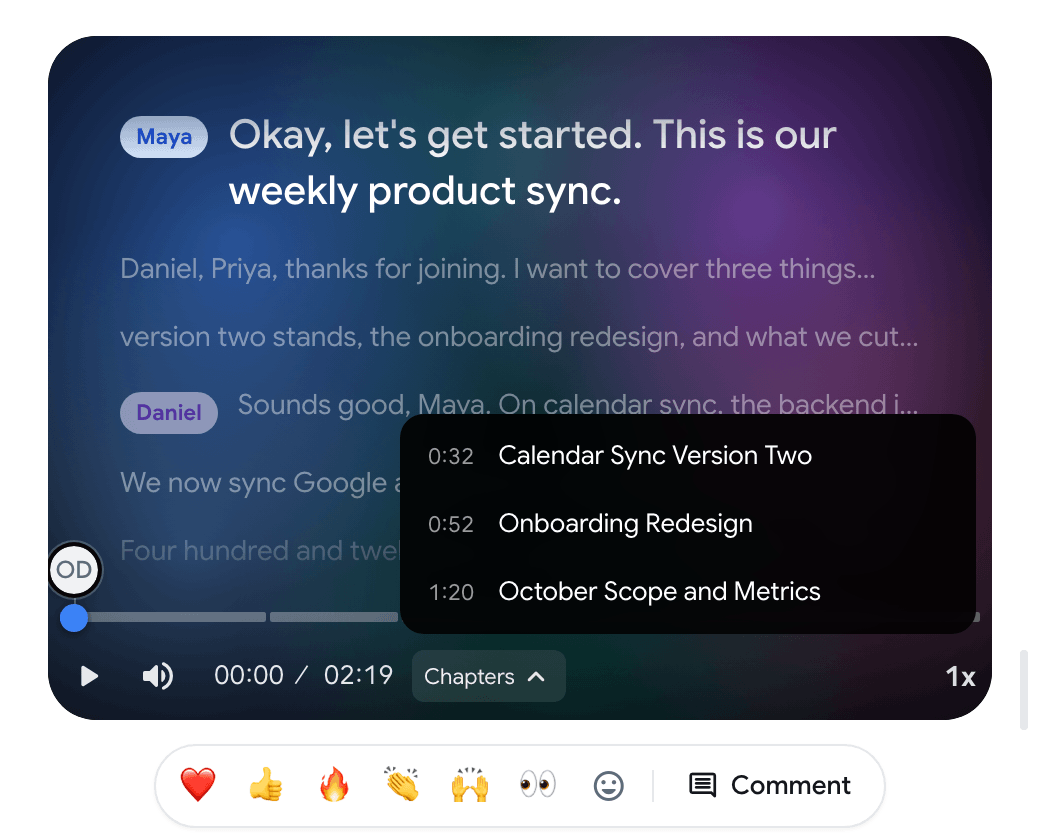
Section titled “Jump to a chapter”When the meeting notes are ready, the recording is divided into chapters. Click Chapters in the control bar and pick a chapter to jump to it.
Show or hide subtitles
Section titled “Show or hide subtitles”When a video recording has a transcript, its text is shown over the video as subtitles. Click the CC button in the control bar (Hide subtitles or Show subtitles), or press C. Subtitles are hidden when the player is small.
An audio-only recording has no video, so the player shows the spoken text instead.
The side panel tabs
Section titled “The side panel tabs”- Notes: the AI meeting notes, with the Ask a question… chat bar at the bottom. See Meeting notes and chat.
- Transcript: the full text with speakers, search, translation, export and Speaker Statistics. See Transcription.
- Generate: a follow-up email, action items and more, made from the notes. It unlocks when the notes are ready. See Generate.
- Edits: skip silence and filler words (see below).
The notes, the transcript and Generate are part of Pro and Enterprise.
On a wide screen you can drag the divider between the player and the panel to resize them.
Skip silence and filler words
Section titled “Skip silence and filler words”The Edits tab appears only when the recording has pauses or filler words to skip. It needs a transcript.
- Skip silence jumps over pauses in the conversation of about 2 seconds or longer. The row shows how many seconds are removed. It is on by default.
- Skip filler words jumps over segments that are only filler sounds such as “um” or “uh”. The row shows how many words are skipped.
These switches change playback only. The recording itself and a downloaded file are not cut. Your choice is remembered in this browser for all recordings.
React and comment
Section titled “React and comment”Under the player there is a row of emoji and a Comment button. Both leave a marker on the timeline at the current moment. See Comments and reactions.
Share and the three-dot menu
Section titled “Share and the three-dot menu”Share in the top right corner opens the share dialog, and the link button next to it copies the share link. See Sharing recordings.
The three-dot menu next to it holds the other actions:
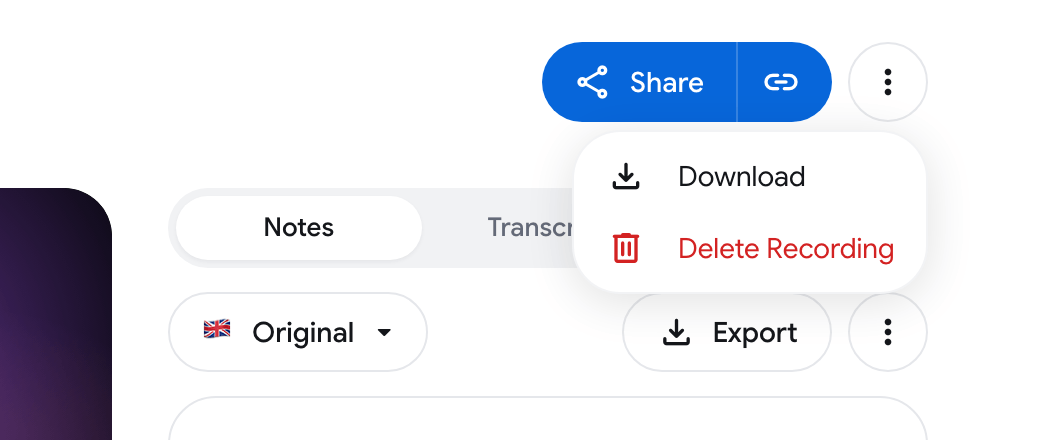
- Download: save the video or the audio. See Download a recording.
- Split back into parts: only for a merged recording. See Recordings list.
- Move…: only if you belong to an organization.
- Delete Recording: permanently deletes the recording and its video.
Right after you stop recording
Section titled “Right after you stop recording”If you open the page just after stopping, the player area shows Recording saved while the video is prepared. The player replaces it by itself. See Interrupted recordings and limits for what happens when something goes wrong.