
Calendar and Google connections
Connecting Google Calendar lets Record Meeting name your recordings after the calendar event and show your upcoming meetings on the Home page. This page also covers what to do when the app says your Google access has expired.
What the calendar connection does
Section titled “What the calendar connection does”- Names recordings for you. A recording made during a calendar event takes the name of that event, so you do not have to rename it.
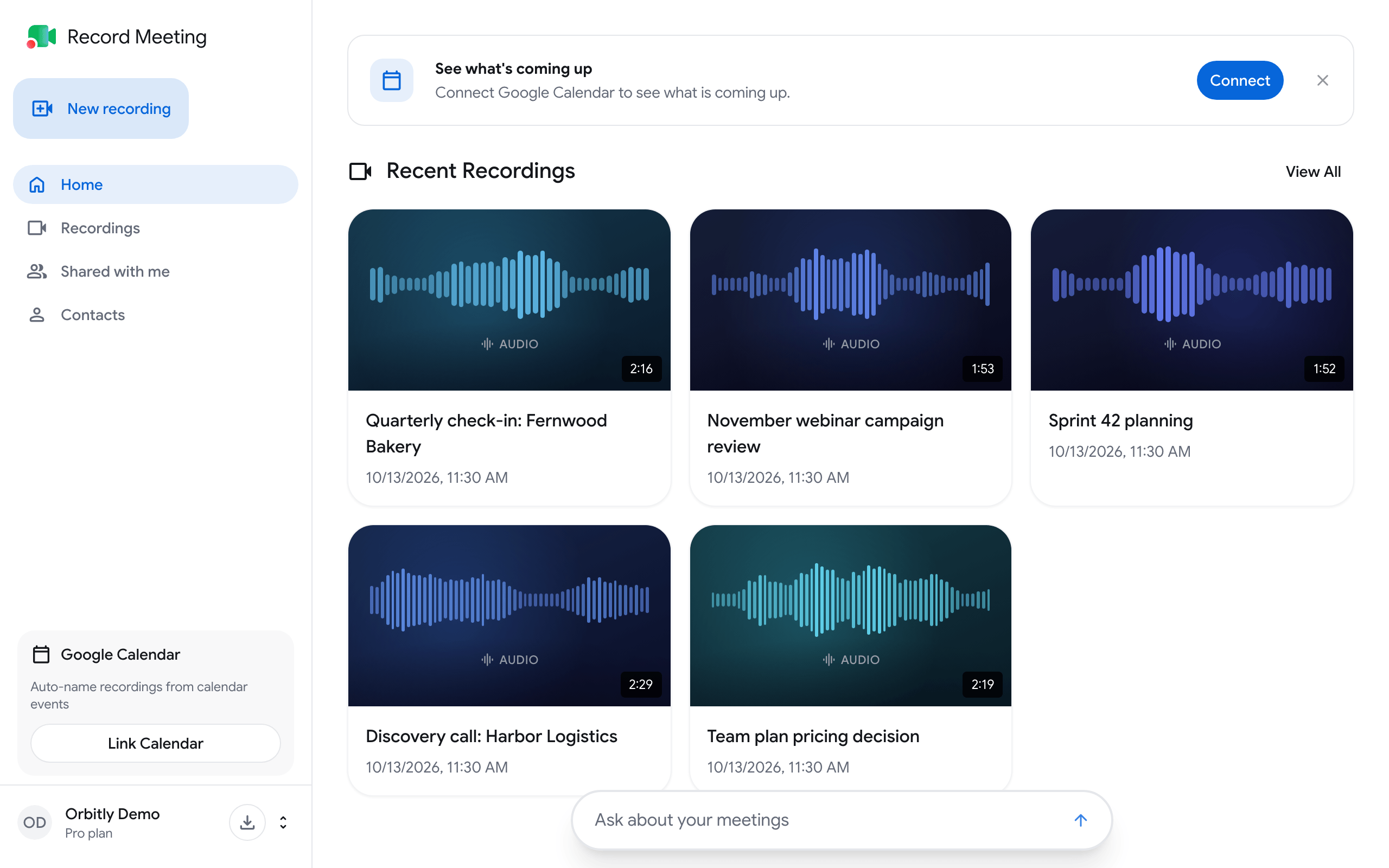
- Shows what is coming up. The Home page gets a Coming up section with your upcoming meetings, grouped by day. Click a meeting to open its call link, or the calendar event when it has no call link.
Connect Google Calendar
Section titled “Connect Google Calendar”You can start from three places. All of them open the same Google permission screen.
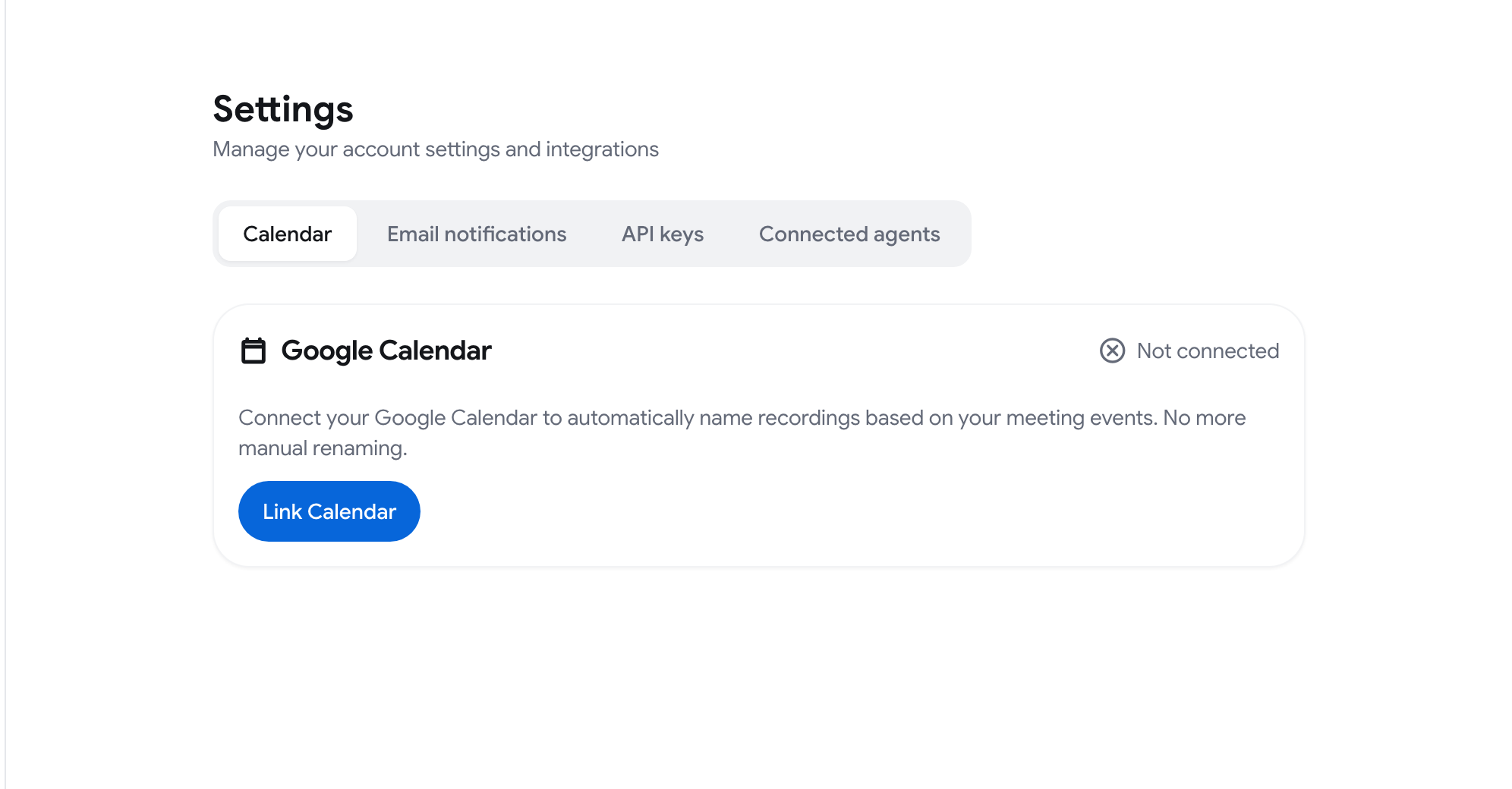
- Settings. Open the account menu (the button with your name at the bottom of the sidebar), click Settings, stay on the Calendar tab and click Link Calendar.
- Home. On the See what’s coming up card, click Connect.
- Sidebar. On the Google Calendar card, click Link Calendar.
Then:
- Choose the same Google account you use to sign in to Record Meeting.
- Allow calendar access when Google asks.
- You come back to the app. Settings ➤ Calendar now says Connected and shows the date.
If you close the card on Home or in the sidebar, it stays hidden in that browser. You can always connect from Settings ➤ Calendar.
Disconnect Google Calendar
Section titled “Disconnect Google Calendar”- Go to Settings ➤ Calendar.
- Click Unlink Calendar.
The status changes to Not connected. New recordings are no longer named from calendar events, and the Coming up section is replaced by the connect card.
Reconnect Google when access has expired
Section titled “Reconnect Google when access has expired”Record Meeting uses your Google account for the calendar and for exports that go to Google: exporting notes to Google Docs, opening action items in Google Sheets and opening a follow-up email in Gmail.
When Google access has expired, those features stop working and the app shows a Google access expired card, at the top of Settings and in the sidebar.
- Click Reconnect Google on the card.
- Choose the Google account you sign in with and allow access.
- Back in the app, a “Google account reconnected” message confirms it worked.
Calendar features and Google exports work again after that.