
Desktop app for macOS
The desktop app records calls that happen in apps on your Mac, where a browser extension cannot reach. It sits in the menu bar, notices when a call starts and offers to record it. No bot joins the call.
Requirements
Section titled “Requirements”- A Mac with Apple Silicon (M1 or later).
- macOS 15 or later.
On an Intel Mac or another operating system, record with the Chrome extension.
Download and install
Section titled “Download and install”-
Open recordmeeting.com/desktop and click Download for Mac.
-
Open RecordMeeting.dmg from your Downloads folder.
-
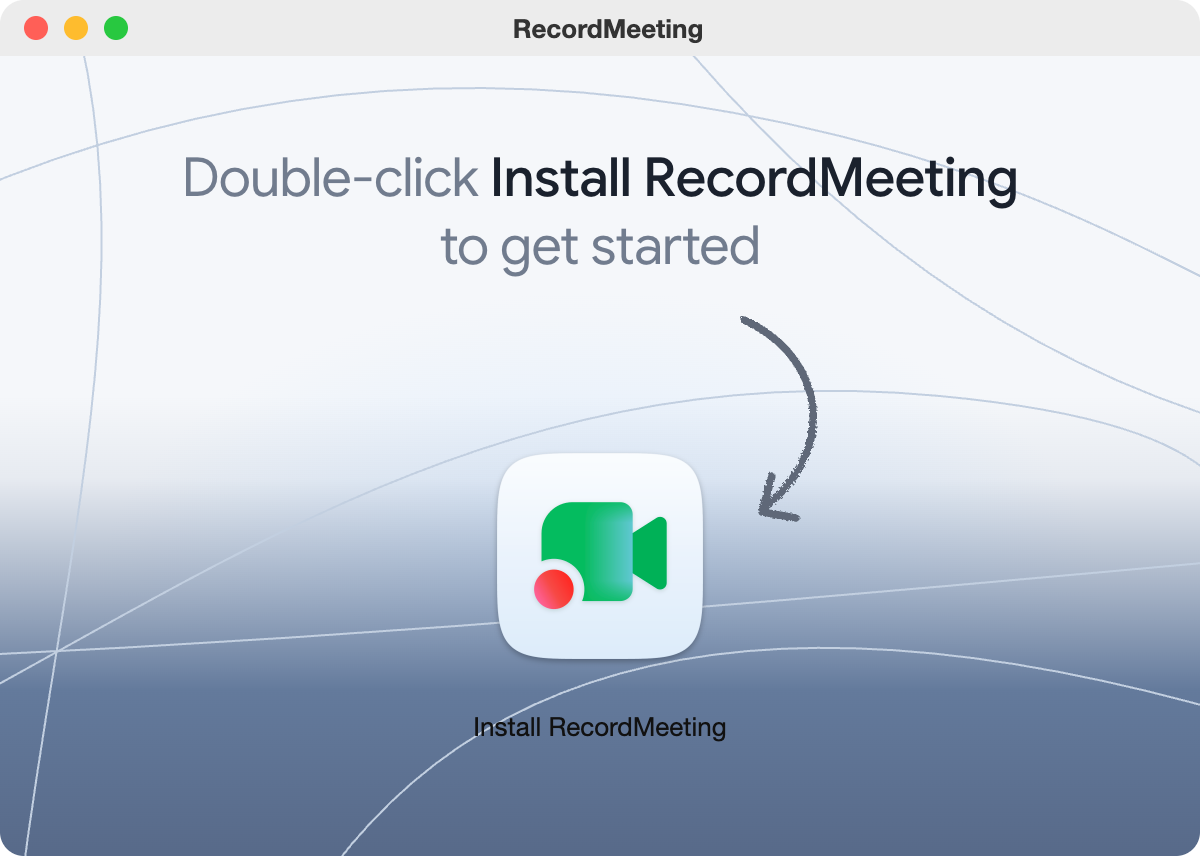
Double-click Install RecordMeeting. The app copies itself to your Applications folder and opens. You do not need to drag anything.
-
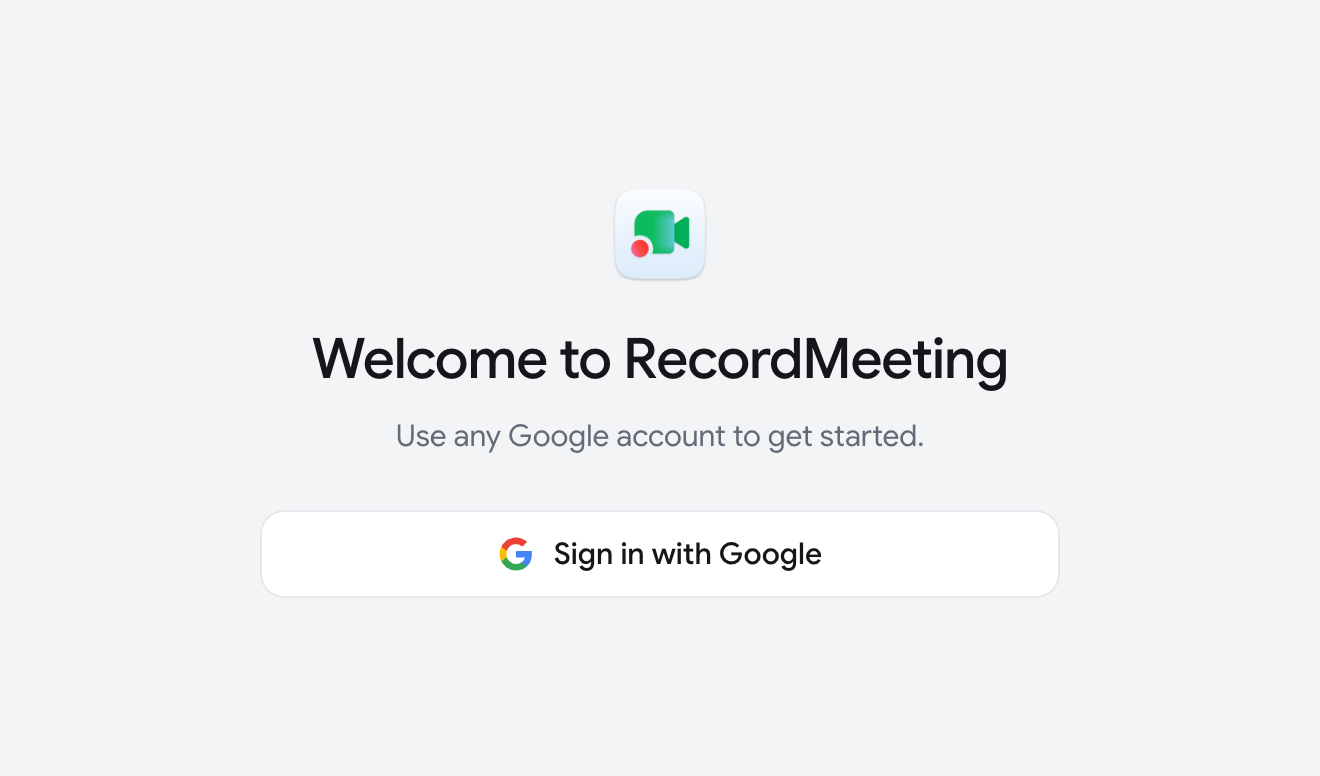
Click Sign in with Google. Your browser opens. Finish the sign-in there and return to the app.
The app opens when you start your Mac, so it is ready for your next call. You can turn this off with Open at login in the menu bar menu.
Allow permissions
Section titled “Allow permissions”After sign-in, the app asks for the permissions it needs to hear the call:
| Row | Button | Needed for |
|---|---|---|
| Transcribe my voice | Enable Microphone | Every recording |
| Transcribe other people’s voices | Enable System Audio | The sound of the call |
| See who’s speaking | Enable accessibility | Speaker names in Google Meet calls in a browser (optional) |
Click Continue when the first two are enabled.
Video recordings also need Screen Recording. The app asks for it the first time you record video. macOS then offers to quit and reopen the app. If you do not want to grant it, choose Record audio only.
Which apps it detects
Section titled “Which apps it detects”The app offers to record when one of these starts using your microphone:
- Zoom, Microsoft Teams, Slack, Webex, FaceTime, WhatsApp, Discord and Telegram.
- Browsers such as Chrome, Safari and Arc. Any microphone use in a browser counts, including voice search.
Record a call
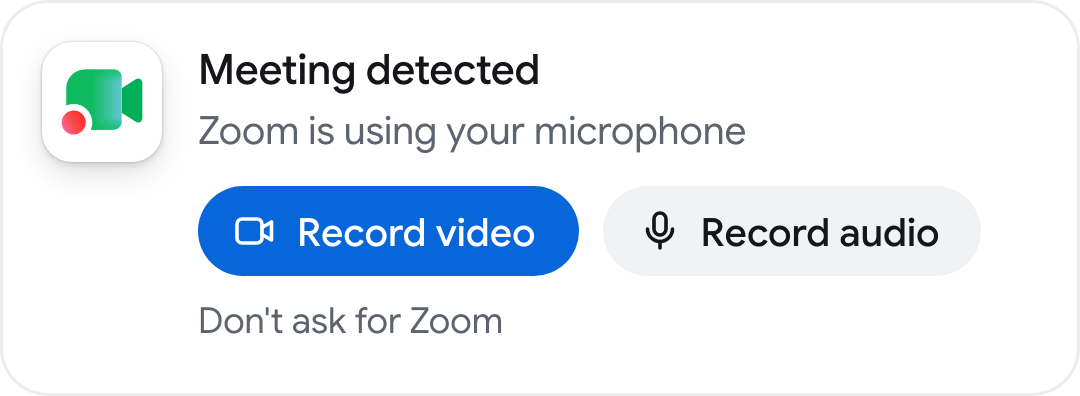
Section titled “Record a call”- Start or join a call. A Meeting detected prompt appears in the top-right corner of the screen.
- Click Record video to record the call window with sound, or Record audio to record sound only.
- The RecordMeeting window moves beside the call and shows the recording page. You stay in the call.
- To finish, click Stop on the recording page or Stop recording in the menu bar menu.
The prompt closes by itself after about 20 seconds. If you miss it, open the menu bar menu and click Record followed by the app’s name. To stop the prompts for one app, click Don’t ask for followed by the app’s name.
The recording also stops by itself about 15 seconds after the call app releases your microphone. A countdown appears first. Click Keep recording to continue.
If your Google Calendar is connected, the app also shows an alert when a meeting is about to start. Join & record opens the meeting link and records the call when it begins.
While you record
Section titled “While you record”- Menu bar. The menu shows Recording with the app’s name and Stop recording. The menu bar icon itself does not change.
- Floating indicator. When the RecordMeeting window is not in front, a small pill on the right edge of the screen shows a red dot and bars that follow the sound. Click it to open the window.
- Live transcript. The recording page shows the words within about a second, split into your side and the other side of the call.
- Pause and stop. The recording page has Pause, Resume and Stop.
When you stop, the prompt says Recording saved and the recording appears in your library like any other. You can play it back right away.
Record without a call
Section titled “Record without a call”Open New recording from the menu bar menu to record your screen (Record screen) or the sound on your Mac with your microphone (Record audio), or to upload a file.
Updates
Section titled “Updates”The app updates itself in the background. It never restarts during a recording or a call. To check by hand, open the menu bar menu and click Check for updates.
Limits
Section titled “Limits”- A recording stops at 6 hours. Recordings shorter than 1 second are discarded.
- Putting your Mac to sleep stops the recording. The upload continues after it wakes.
- The app is for macOS only.