
Download a recording
You can save a recording to your computer as a video file or as audio only. Downloads are part of Pro and Enterprise.
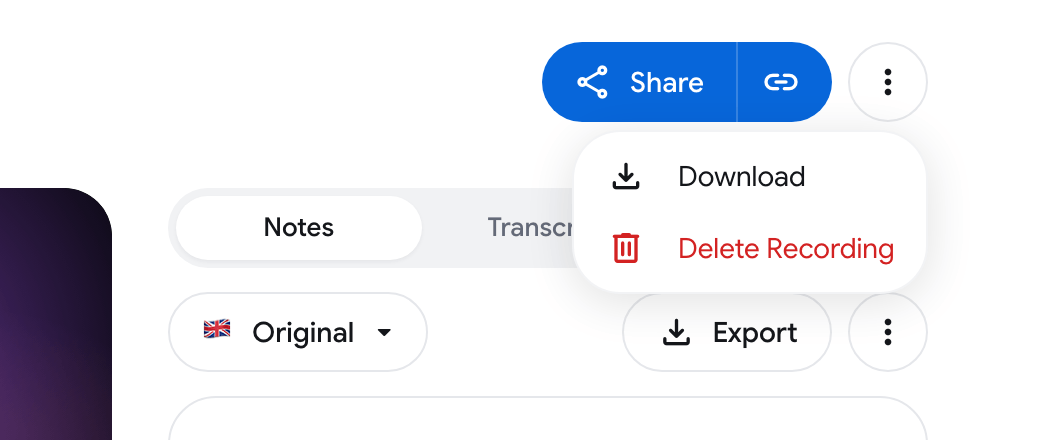
Download the video or the audio
Section titled “Download the video or the audio”-
Open the recording.
-
Click the three-dot menu in the top right corner and choose Download.
-
In the Download dialog, pick a video quality (for example 720p or 480p, with the estimated file size), or pick Audio only for an .m4a file.
-
Click Download.
-
Wait on the Preparing your download screen. We create one file from the recording. Long meetings can take a minute or two.
-
When the file is ready, the download starts by itself and the dialog says Your download has started. If nothing happened, click Save file.
On an iPhone or iPad the download does not start by itself. The dialog says Your file is ready and you tap Save file.
Video is saved as an MP4 file. The dialog lists only the qualities this recording has.
Audio-only recordings
Section titled “Audio-only recordings”A recording made without video (for example a Local recording) has no quality choice. Download saves the original audio file straight away.
Recordings saved in several pieces
Section titled “Recordings saved in several pieces”If a recording continued after an interruption, the menu may show Download part 1 of 2, Download part 2 of 2 and so on instead of a single Download item. Each item saves one piece.
If the file cannot be prepared
Section titled “If the file cannot be prepared”Sometimes the dialog shows Download unavailable:
- This recording is still being processed. Try again in a few minutes.
- We can’t create this file right now or We couldn’t create this file for this recording.
In these cases the dialog may offer Download original (webm). The original file plays in Chrome, Firefox and VLC. Some players, such as QuickTime, cannot open it.
If preparing takes too long, the dialog shows an error with a button to try again.
Who can download
Section titled “Who can download”- Pro and Enterprise: the owner of the recording can download it.
- Free: clicking Download opens the upgrade dialog. See Plans & pricing.
- During a free trial: the menu may show Downloads unlock with your first payment. with a button to start your plan right away.
- In an organization: an administrator can turn off downloads and sharing for a member.
- People you share with: they can download only if you gave them the Download permission, and they must be signed in. See Sharing recordings.
A locked recording cannot be downloaded until it is unlocked.
Download the transcript or the notes
Section titled “Download the transcript or the notes”The transcript and the meeting notes have their own Export menus. See Transcription and Meeting notes and chat.