
Contacts
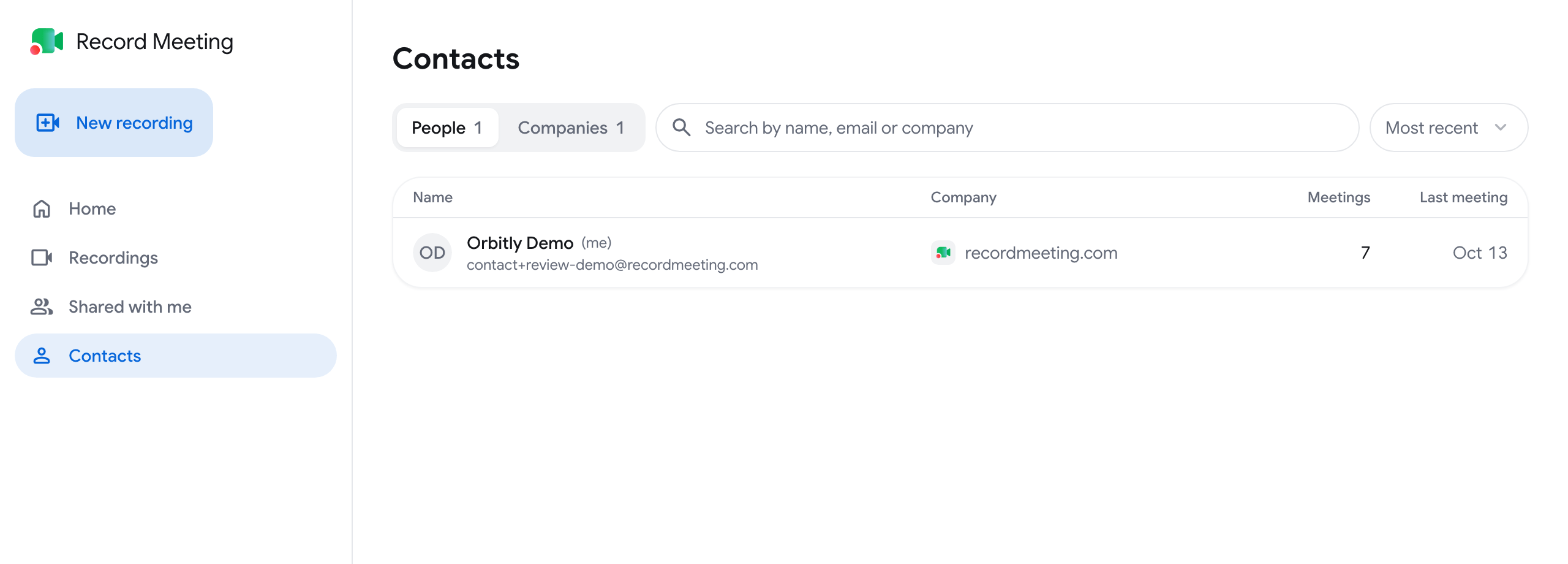
Contacts collects everyone you have met in your recorded meetings and groups them by company. Open it with Contacts in the sidebar. It is part of Pro and Enterprise.
Where the lists come from
Section titled “Where the lists come from”The page has two tabs:
- People: everyone from your recorded meetings. RecordMeeting lists the participants it knows from the calendar event and from Google Meet captions.
- Companies: organizations from your recorded meetings, by email domain. A company appears when a participant has a work email. Personal addresses such as Gmail are not counted.
You do not add contacts by hand. The lists start empty and fill up as you record meetings.
Search and sort
Section titled “Search and sort”- On People, type in Search by name, email or company. On Companies, type in Search companies.
- Use the sort menu next to the search field: Most recent puts the latest meeting first, Most meetings puts the people or companies you meet most often first.
Each row shows the number of meetings and the date of the last one.
Open a person
Section titled “Open a person”Click a person to open their page. It has an ask bar, three shortcuts and every meeting you recorded with them.
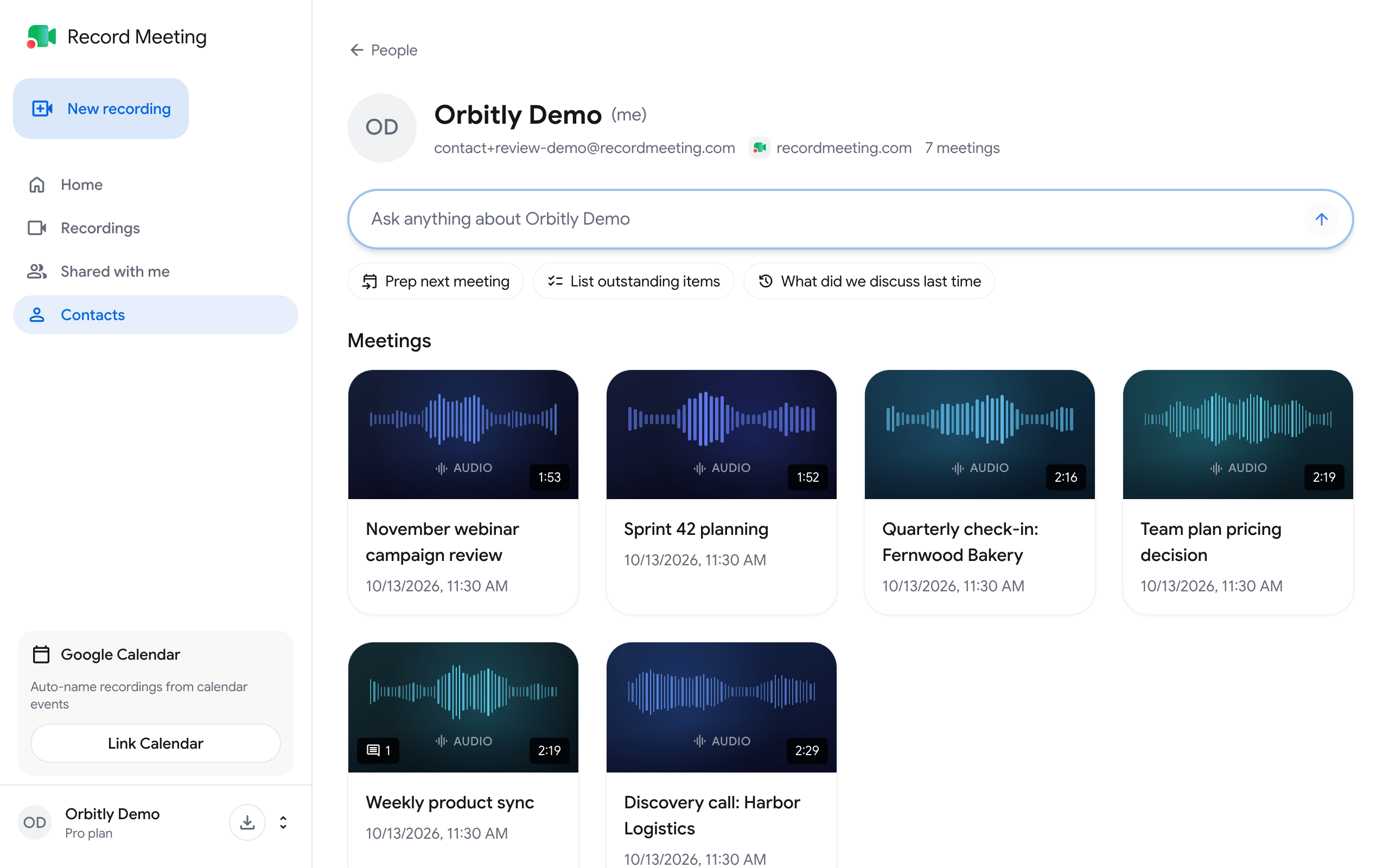
Click the Ask anything about (name) bar and type a question, or use a shortcut:
| Shortcut | What it asks |
|---|---|
| Prep next meeting | Where you left off, what each of you promised, open topics, and talking points for the next meeting |
| List outstanding items | What you owe them and what they owe you |
| What did we discuss last time | The topics, decisions and next steps of your most recent meeting |
The answers use only your meetings with this person.
Open a company
Section titled “Open a company”Click a company on the Companies tab. Its page shows the same ask bar, the People you have met from that company and all the Meetings with them.
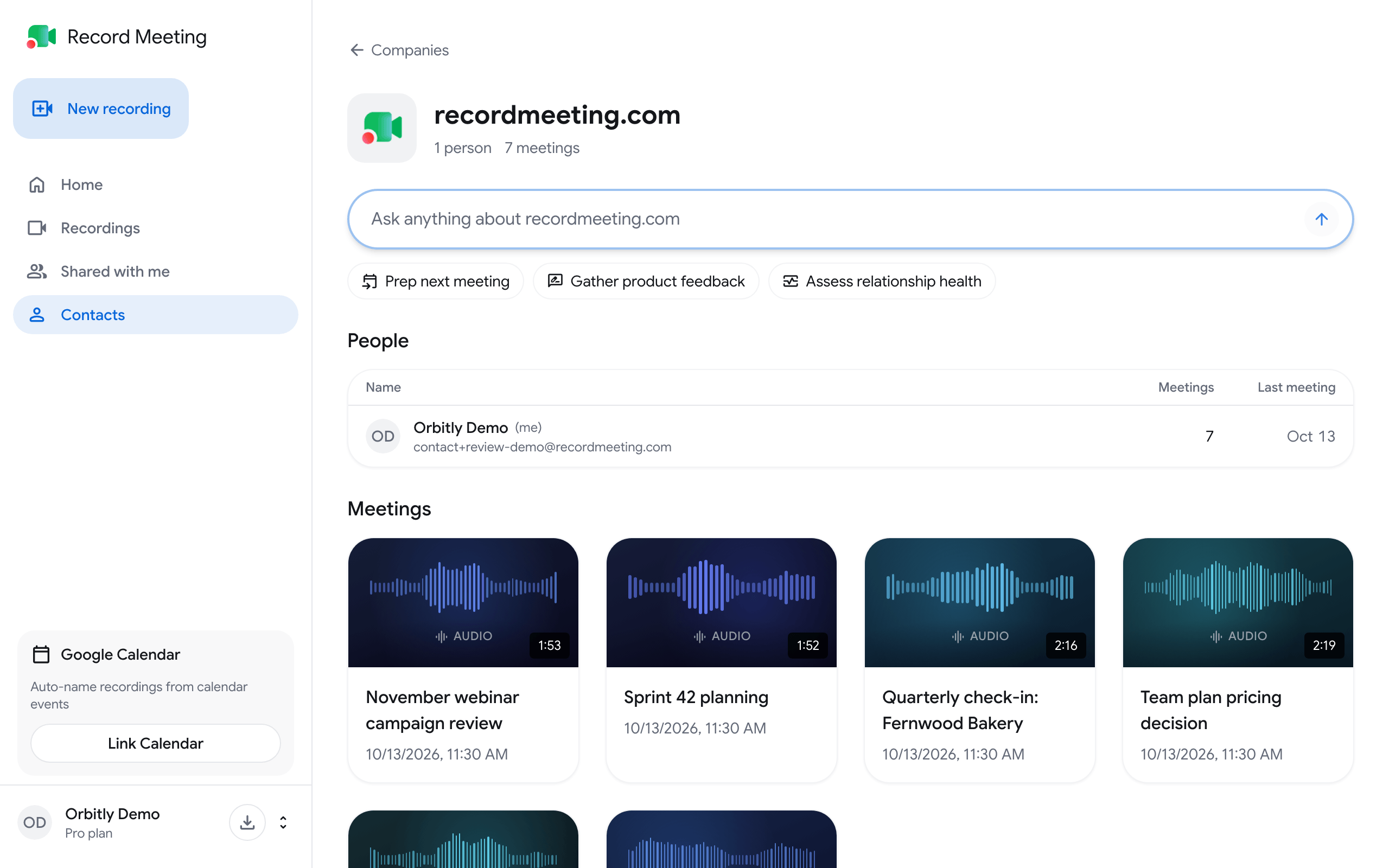
| Shortcut | What it asks |
|---|---|
| Prep next meeting | Who you have met, where things stand, commitments on both sides, and talking points |
| Gather product feedback | What people from this company like, what frustrates them and what they asked for |
| Assess relationship health | How the relationship is going, with a short verdict and what to do next |
Meetings on a contact page
Section titled “Meetings on a contact page”The meetings are the same cards as in the recordings list. Click one to open the recording, or use its three-dot menu to share, rename or delete it.
In an organization
Section titled “In an organization”When you switch to an organization, Contacts shows the people and companies from the organization’s recordings that you can open.
Related pages
Section titled “Related pages”- Home and calendar for the chat across all your meetings
- Meeting notes and chat for the chat about one recording