
Comments and reactions
You and the people you share a recording with can react with an emoji or leave a comment at any moment of the recording. Each one is pinned to the timeline at the second it was left.

React to a moment
Section titled “React to a moment”- Play or move the recording to the moment you want.
- Click one of the six emoji under the player.
To use another emoji, click Add a reaction (the smiley at the end of the row) and pick one.
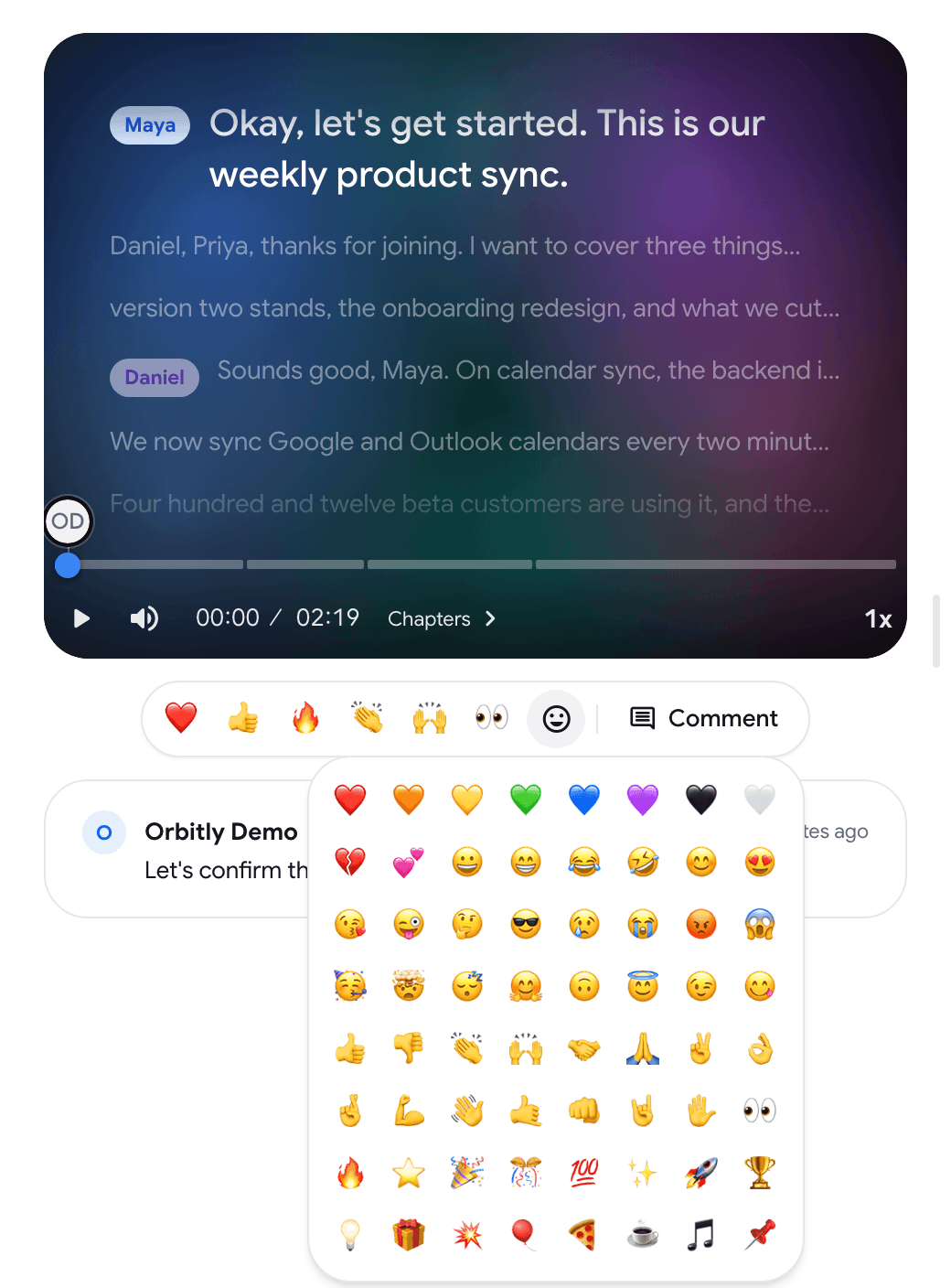
The reaction appears as a marker on the timeline.
Leave a comment
Section titled “Leave a comment”-
Move the recording to the moment you want to comment on.
-
Click Comment under the player. The Add a comment… box opens on the player and shows the current time.
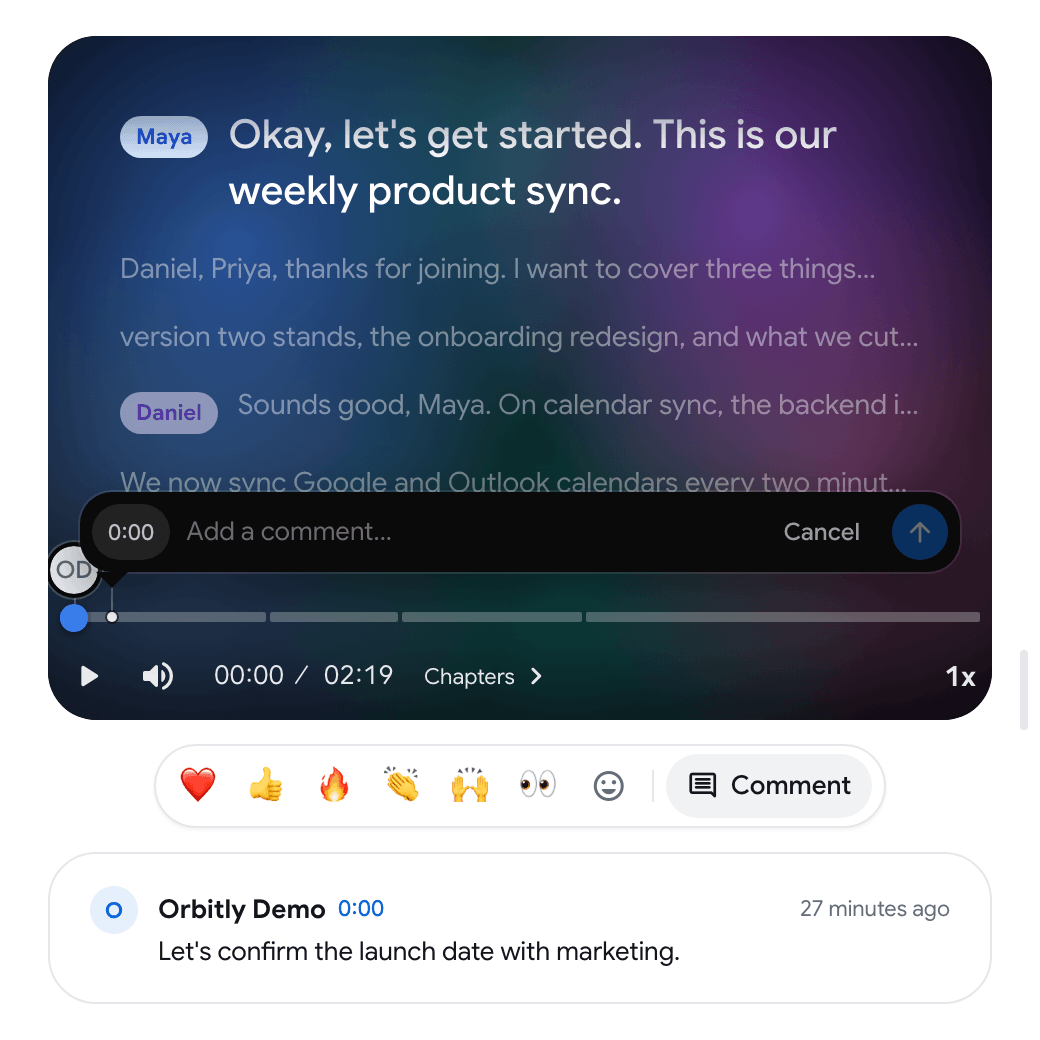
-
Type your comment and press Enter. Press Shift+Enter for a new line, or Esc to cancel.
The comment is saved at the moment the player was at when you posted it.
Read comments
Section titled “Read comments”- Comments are listed under the player with the author, the time in the recording and how long ago they were posted. Click a comment to jump to its moment in the recording.
- On the timeline, hover over a marker to see the comments and reactions left at that moment.
- On a narrow screen the list moves to a Comments tab next to Notes and Transcript.
- In the recordings list, a card shows a comment icon with the number of comments.
You can also react to a comment: hover over it and click Add a reaction.
Move or delete your comment or reaction
Section titled “Move or delete your comment or reaction”- To delete a comment, hover over it in the list and click the delete button, then confirm with Delete. The comment and its replies are removed for everyone.
- To delete a reaction, hover over its marker on the timeline and use the delete button in the card.
- To change the moment, drag your marker along the timeline.
You can delete your own comments and reactions. The owner of the recording can delete anyone’s.
Who can comment and react
Section titled “Who can comment and react”- You, on your own recordings.
- People you shared the recording with, on the shared page.
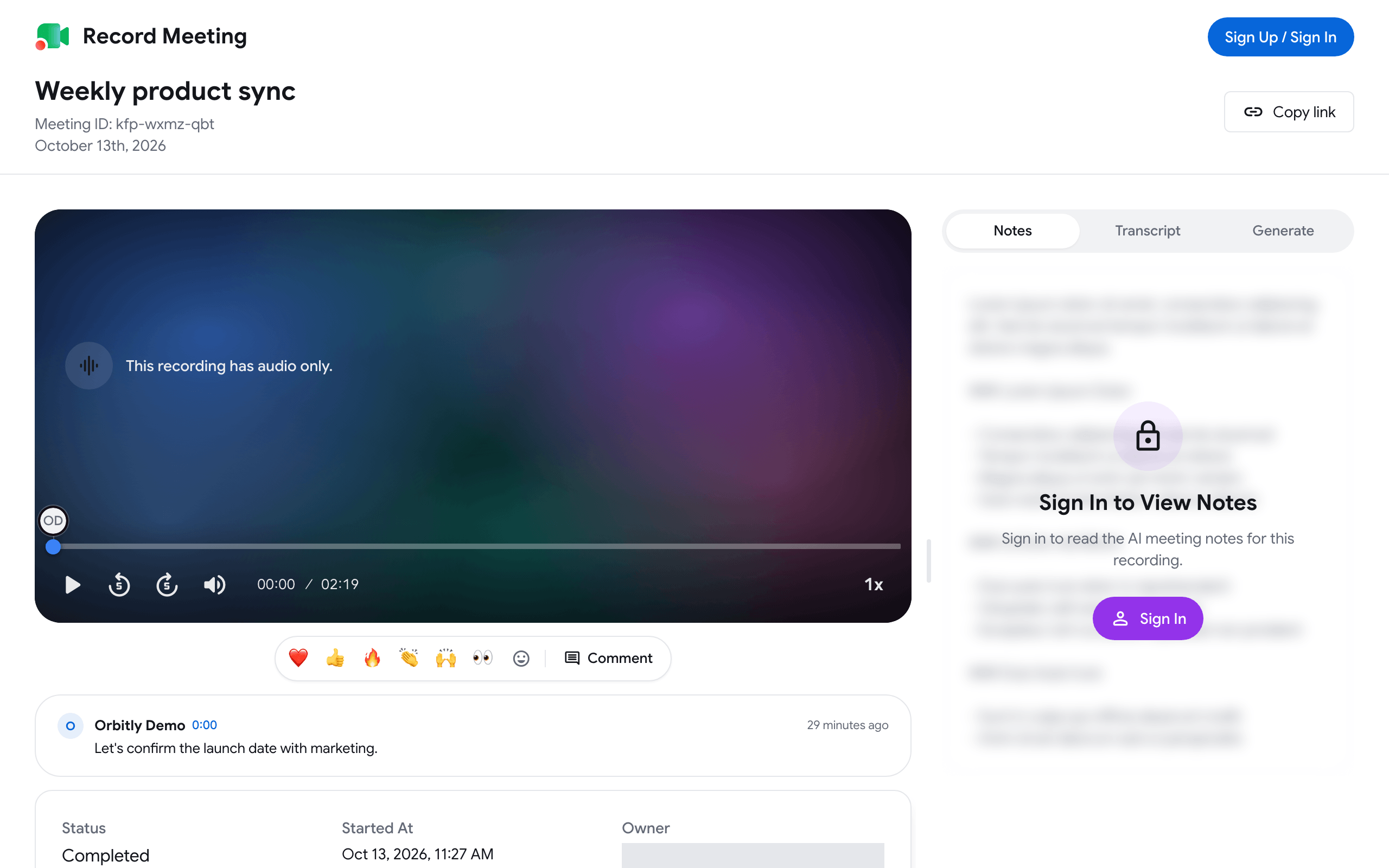
- Guests: anyone who opens the share link, even without a RecordMeeting account. Before the first comment, a guest is asked What’s your name?, and the name is shown next to their comments. A guest who only reacts appears as Guest.
Turn comments and reactions on or off
Section titled “Turn comments and reactions on or off”Comments and reactions are on by default for every recording.
-
Open the recording and click Share.
-
Switch Allow comments and reactions off or on.
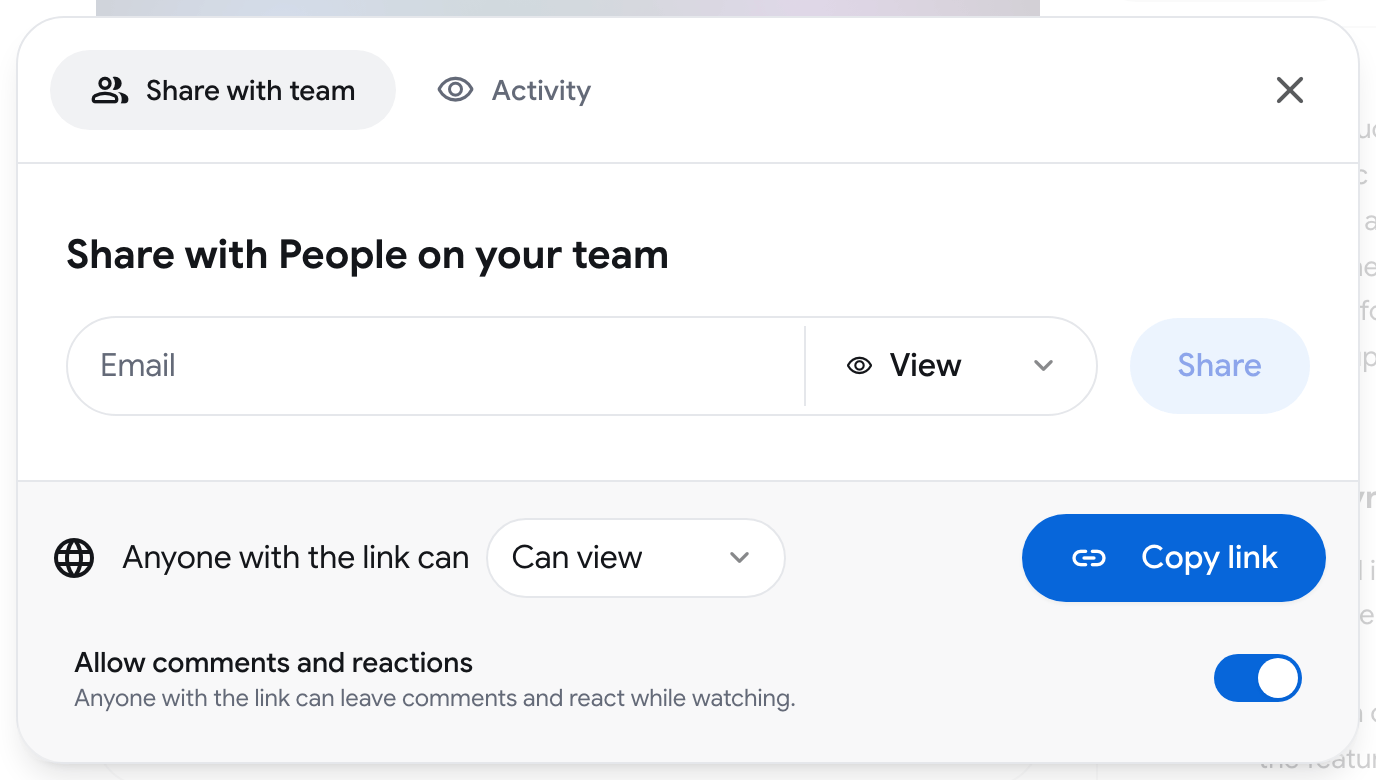
The setting belongs to the recording, so it applies to everyone, including you. When it is off, the recording page shows Comments and reactions are turned off for this recording. with an Enable button for the owner.
See Sharing recordings for the other sharing options.